Table Operations
Prior to Langflow 1.9.0, this component was named DataFrame Operations.
The Table Operations component performs operations on Table rows and columns, including schema changes, record changes, sorting, and filtering.
For all options, see Table Operations parameters.
The output is a new Table containing the modified data after running the selected operation.
Use the Table Operations component in a flow
The following steps explain how to configure a Table Operations component in a flow.
You can follow along with an example or use your own flow.
The only requirement is that the preceding component must create Table output that you can pass to the Table Operations component.
-
Create a new flow or use an existing flow.
Example: API response extraction flow
The following example flow uses five components to extract
JSONfrom an API response, transform it to aTable, and then perform further processing on tabular data using a Table Operations component. The sixth component, Chat Output, is optional in this example. It only serves as a convenient way for you to view the final output in the Playground, rather than inspecting the component logs.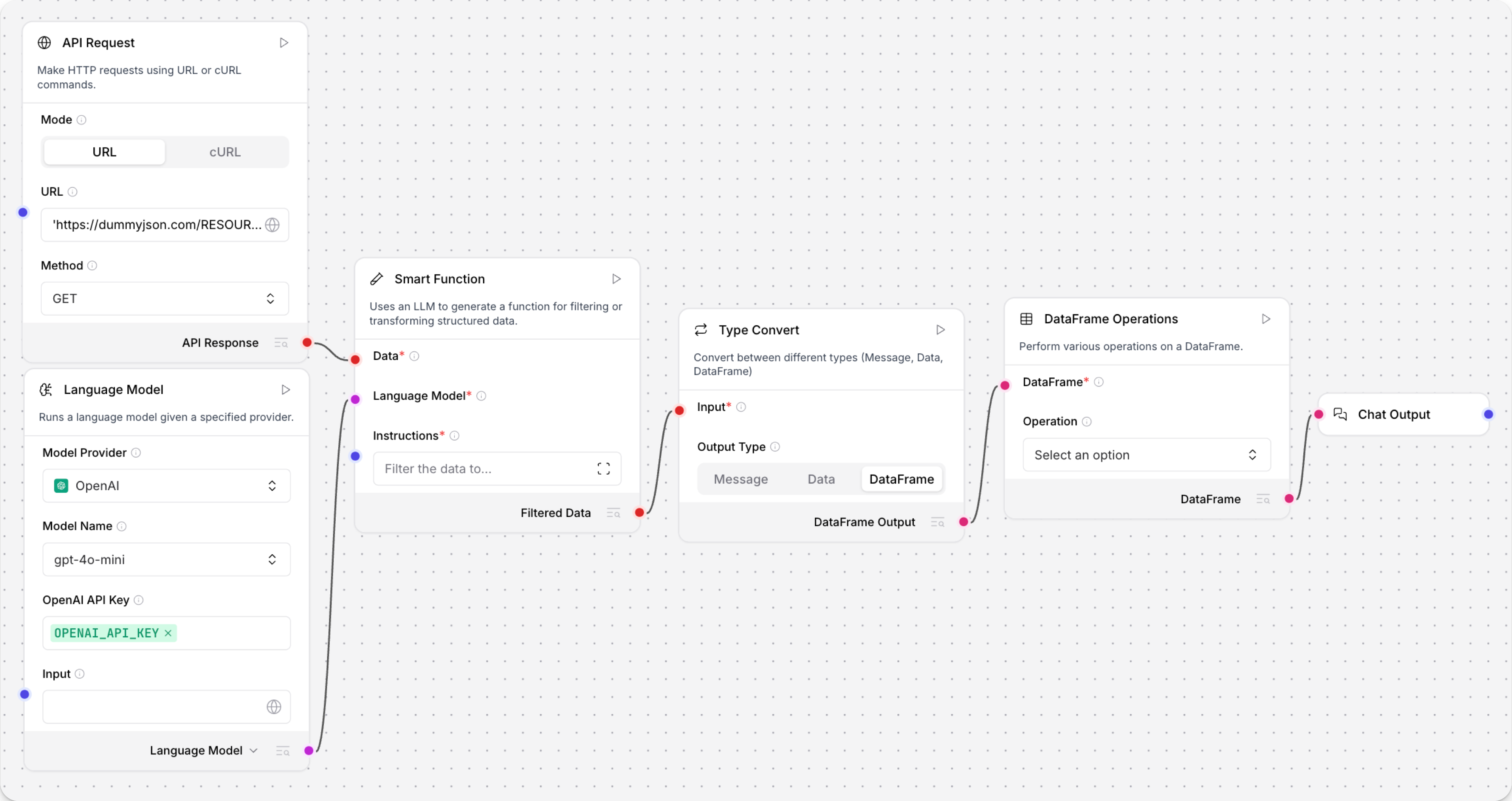
If you want to use this example to test the Table Operations component, do the following:
-
Create a flow with the following components:
- API Request
- Language Model
- Smart Transform
- Type Convert
-
Configure the Smart Transform component and its dependencies:
- API Request: Configure the API Request component to get JSON data from an endpoint of your choice, and then connect the API Response output to the Smart Transform component's Data input.
- Language Model: Select your preferred provider and model, and then enter a valid API key.
Change the output to Language Model, and then connect the
LanguageModeloutput to the Smart Transform component's Language Model input. - Smart Transform: In the Instructions field, enter natural language instructions to extract data from the API response.
Your instructions depend on the response content and desired outcome.
For example, if the response contains a large
resultfield, you might provide instructions likeexplode the result field out into a Data object.
-
Convert the Smart Transform component's output from
JSONtoTable:- Connect the Filtered Data output to the Type Convert component's JSON input.
- Set the Type Convert component's Output Type to Table.
Now the flow is ready for you to add the Table Operations component.
-
-
Add a Table Operations component to the flow, and then connect
Tableoutput from another component to the Table input.All operations in the Table Operations component require at least one
Tableinput from another component. If a component doesn't produceTableoutput, you can use another component, such as the Type Convert component, to reformat the data before passing it to the Table Operations component. Alternatively, you could consider using a component that is designed to process the original data type, such as the Parser component or JSON Operations component.If you are following along with the example flow, connect the Type Convert component's Table Output port to the Table input.
-
In the Operations field, select the operation you want to perform on the incoming
Table. For example, the Filter operation filters the rows based on a specified column and value.tipYou can select only one operation. If you need to perform multiple operations on the data, you can chain multiple Table Operations components together to execute each operation in sequence. For more complex multi-step operations, like dramatic schema changes or pivots, consider using an LLM-powered component, like the Structured Output component or Smart Transform component, as a replacement or preparation for the Table Operations component.
If you're following along with the example flow, select any operation that you want to apply to the data that was extracted by the Smart Transform component. To view the contents of the incoming
Table, click Run component on the Type Convert component, and then Inspect output. If theTableseems malformed, click Inspect output on each upstream component to determine where the error occurs, and then modify your flow's configuration as needed. For example, if the Smart Transform component didn't extract the expected fields, modify your instructions or verify that the given fields are present in the API Response output. -
Configure the operation's parameters. The specific parameters depend on the selected operation. For example, if you select the Filter operation, you must define a filter condition using the Column Name, Filter Value, and Filter Operator parameters. For more information, see Table Operations parameters
-
To test the flow, click Run component on the Table Operations component, and then click Inspect output to view the new
Tablecreated from the Filter operation.If you want to view the output in the Playground, connect the Table Operations component's output to a Chat Output component, rerun the Table Operations component, and then click Playground.
For another example, see Conditional looping.
Table Operations parameters
Most Table Operations parameters are conditional because they only apply to specific operations.
The only permanent parameters are Table (df), which is the Table input, and Operation (operation), which is the operation to perform on the Table.
Once you select an operation, the conditional parameters for that operation appear on the Table Operations component.
- Add Column
- Concatenate
- Drop Column
- Filter
- Head
- Merge
- Rename Column
- Replace Value
- Select Columns
- Sort
- Tail
- Drop Duplicates
The Add Column operation allows you to add a new column to the Table with a constant value.
The parameters are New Column Name (new_column_name) and New Column Value (new_column_value).
The Concatenate operation combines multiple input Table objects into a single Table by stacking their rows vertically.
For example, if you have Table A and Table B, they are combined into one table with all rows from Table A, and then all rows from Table B.
This operation uses the Table (df) input.
Connect multiple Table outputs to the same input to concatenate them.
The output is a single Table containing the combined rows from all connected inputs.
The Drop Column operation allows you to remove a column from the Table, specified by Column Name (column_name).
The Filter operation allows you to filter the Table based on a specified condition.
The output is a Table containing only the rows that matched the filter condition.
Provide the following parameters:
- Column Name (
column_name): The name of the column to filter on. - Filter Value (
filter_value): The value to filter on. - Filter Operator (
filter_operator): The operator to use for filtering, one ofequals(default),not equals,contains,not contains,starts with,ends with,greater than, orless than.
The Head operation allows you to retrieve the first n rows of the Table, where n is set in Number of Rows (num_rows).
The default is 5.
The output is a Table containing only the selected rows.
The Merge operation combines two input Table objects by matching rows that share the same value in a selected column.
For example, if one table has id and name, and another has id and department, you can merge both tables on id to produce one table with id, name, and department.
Provide the following parameters:
- Left Table (
left_dataframe): The primary table in the merge. - Right Table (
right_dataframe): The secondary table in the merge. - Merge On Column (
merge_on_column): The shared column used to match rows. This column must exist in both tables. - Merge Type (
merge_how): Controls which matched and unmatched rows are kept in the output. Useinnerto keep only matching rows,leftto keep all rows from the left table,rightto keep all rows from the right table, orouterto keep all rows from both tables.
The output is a Table containing matched records from both inputs.
The Rename Column operation allows you to rename an existing column in the Table.
The parameters are Column Name (column_name), which is the current name, and New Column Name (new_column_name).
The Replace Value operation allows you to replace values in a specific column of the Table.
This operation replaces a target value with a new value.
All cells matching the target value are replaced with the new value in the new Table output.
Provide the following parameters:
- Column Name (
column_name): The name of the column to modify. - Value to Replace (
replace_value): The value that you want to replace. - Replacement Value (
replacement_value): The new value to use.
The Select Columns operation allows you to select one or more specific columns from the Table.
Provide a list of column names in Columns to Select (columns_to_select).
In the visual editor, click Add More to add multiple fields, and then enter one column name in each field.
The output is a Table containing only the specified columns.
The Sort operation allows you to sort the Table on a specific column in ascending or descending order.
Provide the following parameters:
- Column Name (
column_name): The name of the column to sort on. - Sort Ascending (
ascending): Whether to sort in ascending or descending order. If enabled (true), sorts in ascending order; if disabled (false), sorts in descending order. Default: Enabled (true)
The Tail operation allows you to retrieve the last n rows of the Table, where n is set in Number of Rows (num_rows).
The default is 5.
The output is a Table containing only the selected rows.
The Drop Duplicates operation removes rows from the Table by identifying all duplicate values within a single column.
The only parameter is the Column Name (column_name).
When the flow runs, all rows with duplicate values in the given column are removed.
The output is a Table containing all columns from the original Table, but only rows with non-duplicate values.