JSON Operations
Prior to Langflow 1.9.0, this component was named Data Operations.
The JSON Operations component performs operations on JSON objects, including extracting, filtering, and editing keys and values in the JSON.
For all options, see Available data operations.
The output is a new JSON object containing the modified data after running the selected operation.
Use the JSON Operations component in a flow
The following example demonstrates how to use a JSON Operations component in a flow using data from a webhook payload:
-
Create a flow with a Webhook component and a JSON Operations component, and then connect the Webhook component's output to the JSON Operations component's JSON input.
All operations in the JSON Operations component require at least one
JSONinput from another component. If the preceding component doesn't produceJSONoutput, you can use another component, such as the Type Convert component, to reformat the data before passing it to the JSON Operations component. Alternatively, you could consider using a component that is designed to process the original data type, such as the Parser component or Table Operations component. -
In the Operations field, select the operation you want to perform on the incoming
JSON. For this example, select the Select Keys operation.tipYou can select only one operation. If you need to perform multiple operations on the data, you can chain multiple JSON Operations components together to execute each operation in sequence. For more complex multi-step operations, consider using a component like the Smart Transform component.
-
Under Select Keys, add keys for
name,username, andemail. Click Add more to add a field for each key.For this example, assume that the webhook will receive consistent payloads that always contain
name,username, andemailkeys. The Select Keys operation extracts the value of these keys from each incoming payload. -
Optional: If you want to view the output in the Playground, connect the JSON Operations component's output to a Chat Output component.
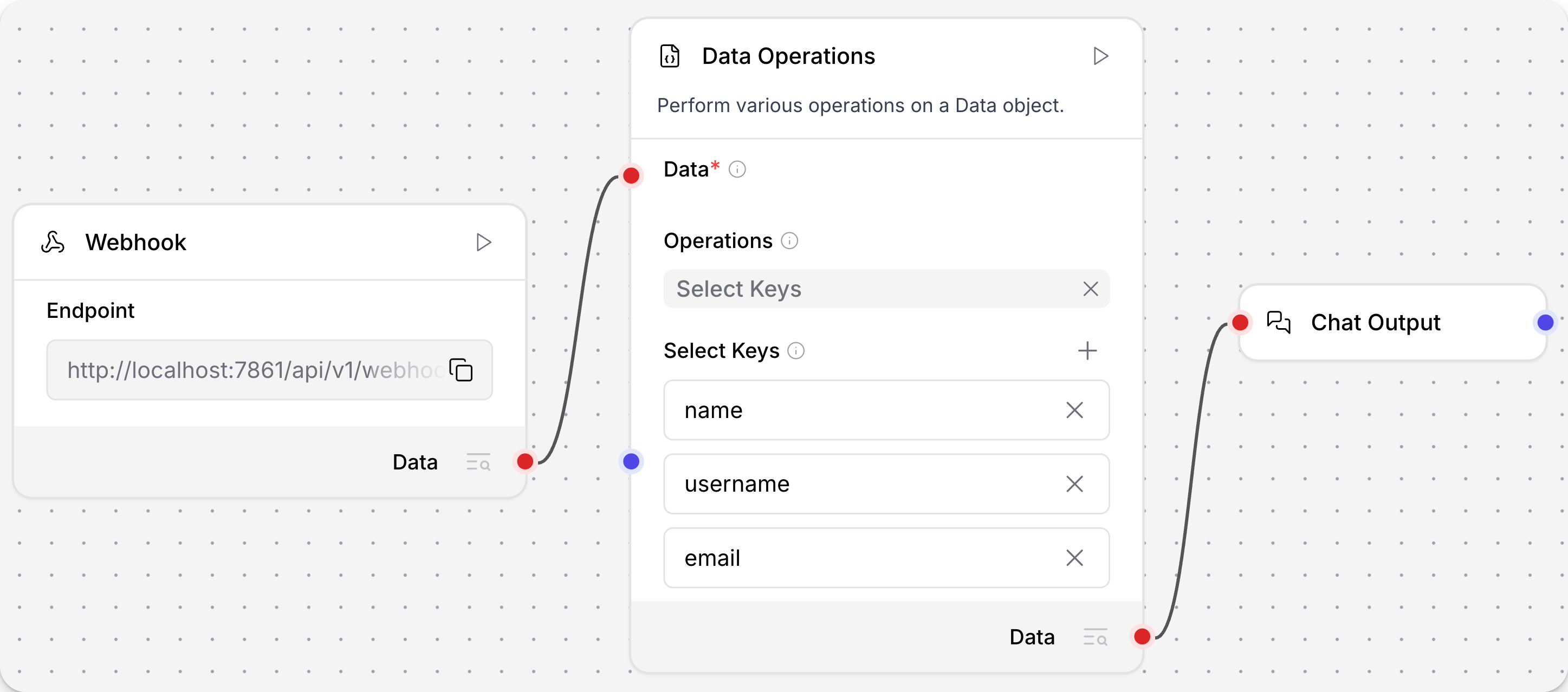
-
To test the flow, send the following request to your flow's webhook endpoint. For more information about the webhook endpoint, see Trigger flows with webhooks.
_26curl -X POST "http://$LANGFLOW_SERVER_URL/api/v1/webhook/$FLOW_ID" \_26-H "Content-Type: application/json" \_26-H "x-api-key: $LANGFLOW_API_KEY" \_26-d '{_26"id": 1,_26"name": "Leanne Graham",_26"username": "Bret",_26"email": "Sincere@april.biz",_26"address": {_26"street": "Main Street",_26"suite": "Apt. 556",_26"city": "Springfield",_26"zipcode": "92998-3874",_26"geo": {_26"lat": "-37.3159",_26"lng": "81.1496"_26}_26},_26"phone": "1-770-736-8031 x56442",_26"website": "hildegard.org",_26"company": {_26"name": "Acme-Corp",_26"catchPhrase": "Multi-layered client-server neural-net",_26"bs": "harness real-time e-markets"_26}_26}' -
To view the
JSONresulting from the Select Keys operation, do one of the following:- If you attached a Chat Output component, open the Playground to see the result as a chat message.
- Click Inspect output on the JSON Operations component.
JSON Operations parameters
Many parameters are conditional based on the selected Operation (operation).
| Name | Display Name | Info |
|---|---|---|
| data | JSON | Input parameter. The JSON object to operate on. Must be provided as JSON data type input generated by another component. If the preceding component doesn't produce JSON output, use the Type Convert component to reformat the data before passing it to the JSON Operations component. |
| operation | Operation | Input parameter. The operation to perform on the data. See Available data operations |
| select_keys_input | Select Keys | Input parameter. A list of keys to select from the data. |
| filter_key | Filter Key | Input parameter. The key to filter by. |
| operator | Comparison Operator | Input parameter. The operator to apply for comparing values. |
| filter_values | Filter Values | Input parameter. A list of values to filter by. |
| append_update_data | Append or Update | Input parameter. The data to append or update the existing data with. |
| remove_keys_input | Remove Keys | Input parameter. A list of keys to remove from the data. |
| rename_keys_input | Rename Keys | Input parameter. A list of keys to rename in the data. |
| mapped_json_display | JSON to Map | Input parameter. JSON structure to explore for path selection. Only applies to the Path Selection operation. For more information, see Path Selection operation examples. |
| selected_key | Select Path | Input parameter. The JSON path expression to extract values. Only applies to the Path Selection operation. For more information, see Path Selection operation examples. |
| query | JQ Expression | Input parameter. The jq expression for advanced JSON filtering and transformation. Only applies to the JQ Expression operation. For more information, see JQ Expression operation examples. |
Available data operations
Options for the operations input parameter are as follows.
All operations act on an incoming JSON object.
| Name | Required Inputs | Process |
|---|---|---|
| Select Keys | select_keys_input | Selects specific keys from the data. |
| Literal Eval | None | Evaluates string values as Python literals. |
| Combine | None | Combines multiple data objects into one. |
| Filter Values | filter_key, filter_values, operator | Filters data based on key-value pair. |
| Append or Update | append_update_data | Adds or updates key-value pairs. |
| Remove Keys | remove_keys_input | Removes specified keys from the data. |
| Rename Keys | rename_keys_input | Renames keys in the data. |
| Path Selection | mapped_json_display, selected_key | Extracts values from nested JSON structures using path expressions. |
| JQ Expression | query | Performs advanced JSON queries using jq syntax for filtering, projections, and transformations. |
Path Selection operation examples
Use the Path Selection operation to extract values from nested JSON structures with dot notation paths.
-
In the Operations dropdown, select Path Selection.
-
In the JSON to Map field, enter your JSON structure.
This example uses the following JSON structure.
_11{_11"user": {_11"profile": {_11"name": "John Doe",_11"email": "john@example.com"_11},_11"settings": {_11"theme": "dark"_11}_11}_11}The Select Path dropdown auto-populates with available paths.
-
In the Select Paths dropdown, select the path. You can select paths such as
.user.profile.nameto extract "John Doe", or select.user.settings.themeto extract "dark".
JQ Expression operation example
Use the JQ Expressions operation to use the jq query language to perform more advanced JSON filtering.
-
In the Operations dropdown, select JQ Expression.
-
In the JQ Expression field, enter a
jqfilter to query against the JSON Operations component's JSON input.For this example JSON structure, enter expressions like
.user.profile.nameto extract "John Doe",.user.profile | {name, email}to project fields to a new object, or.user.profile | tostringto convert the field to a string._11{_11"user": {_11"profile": {_11"name": "John Doe",_11"email": "john@example.com"_11},_11"settings": {_11"theme": "dark"_11}_11}_11}