DataStax
If you installed lfx directly (not as part of langflow), install the DataStax bundle separately:
- Run
uv pip install lfx-datastax. - Restart Langflow.
- To confirm the bundle loaded, run
lfx extension list.
If you installed Langflow with uv pip install langflow, these bundle components are already included.
For more information, see Install LFX with bundle components.
Bundles contain custom components that support specific third-party integrations with Langflow.
This page describes the components that are available in the DataStax bundle, including components that read and write to Astra DB databases.
Astra DB
It is recommended that you create any databases, keyspaces, and collections you need before configuring the Astra DB component.
You can create new databases and collections through this component, but this is only possible in the Langflow visual editor (not at runtime), and you must wait while the database or collection initializes before proceeding with flow configuration. Additionally, not all database and collection configuration options are available through the Astra DB component, such as hybrid search options, PCU groups, vectorize integration management, and multi-region deployments.
The Astra DB component reads and writes to Astra DB Serverless databases, using an instance of AstraDBVectorStore to call the Data API and DevOps API.
About vector store instances
Because Langflow is based on LangChain, vector store components use an instance of LangChain vector store to drive the underlying read and write functions. These instances are provider-specific and configured according to the component's parameters, such as the connection string, index name, and schema.
In component code, this is often instantiated as vector_store, but some vector store components use a different name, such as the provider name.
Some LangChain classes don't expose all possible options as component parameters. Depending on the provider, these options might use default values or allow modification through environment variables, if they are supported in Langflow. For information about specific options, see the LangChain API reference and vector store provider's documentation.
Astra DB parameters
You can inspect a vector store component's parameters to learn more about the inputs it accepts, the features it supports, and how to configure it.
Some parameters are hidden by default in the visual editor. You can modify all component parameters through the component inspection panel that appears when you select a component.
Some parameters are conditional, and they are only available after you set other parameters or select specific options for other parameters. Conditional parameters may not be visible on the Controls pane until you set the required dependencies.
For information about accepted values and functionality, see the Astra DB Serverless documentation or inspect component code.
| Name | Display Name | Info |
|---|---|---|
| token | Astra DB Application Token | Input parameter. An Astra application token with permission to access your vector database. Once the connection is verified, additional fields are populated with your existing databases and collections. If you want to create a database through this component, the application token must have Organization Administrator permissions. |
| environment | Environment | Input parameter. The environment for the Astra DB API endpoint. Typically always prod. |
| database_name | Database | Input parameter. The name of the database that you want this component to connect to. Or, you can select New Database to create a new database, and then wait for the database to initialize before setting the remaining parameters. |
| endpoint | Astra DB API Endpoint | Input parameter. For multi-region databases, select the API endpoint for your nearest datacenter. To get the list of regions for a multi-region database, see List database regions. This field is automatically populated when you select a database, and it defaults to the primary region's endpoint. |
| keyspace | Keyspace | Input parameter. The keyspace in your database that contains the collection specified in collection_name. Default: default_keyspace. |
| collection_name | Collection | Input parameter. The name of the collection that you want to use with this flow. Or, select New Collection to create a new collection with limited configuration options. To ensure your collection is configured with the correct embedding provider and search capabilities, it is recommended to create the collection in the Astra Portal or with the Data API before configuring this component. For more information, see Manage collections in Astra DB Serverless. |
| embedding_model | Embedding Model | Input parameter. Attach an embedding model component to generate embeddings. Only available if the specified collection doesn't have a vectorize integration. If a vectorize integration exists, the component automatically uses the collection's integrated model. |
| ingest_data | Ingest Data | Input parameter. The documents to load into the specified collection. Accepts JSON or Table input. |
| search_query | Search Query | Input parameter. The query string for vector search. |
| cache_vector_store | Cache Vector Store | Input parameter. Whether to cache the vector store in Langflow memory for faster reads. Default: Enabled (true). |
| search_method | Search Method | Input parameter. The search methods to use, either Hybrid Search or Vector Search. Your collection must be configured to support the chosen option, and the default depends on what your collection supports. All vector-enabled collections in Astra DB Serverless (vector) databases support vector search, but hybrid search requires that you set specific collection settings when creating the collection. These options are only available when creating a collection programmatically. For more information, see Ways to find data in Astra DB Serverless and Create a collection that supports hybrid search. |
| reranker | Reranker | Input parameter. The re-ranker model to use for hybrid search, depending on the collection configuration. This parameter is only available for collections that support hybrid search. To determine if a collection supports hybrid search, get collection metadata, and then check that lexical and rerank both have "enabled": true. |
| lexical_terms | Lexical Terms | Input parameter. A space-separated string of keywords for hybrid search, like features, data, attributes, characteristics. This parameter is only available if the collection supports hybrid search. For more information, see the Hybrid search example. |
| number_of_results | Number of Search Results | Input parameter. The number of search results to return. Default: 4. |
| search_type | Search Type | Input parameter. The search type to use, either Similarity (default), Similarity with score threshold, and MMR (Max Marginal Relevance). |
| search_score_threshold | Search Score Threshold | Input parameter. The minimum similarity score threshold for vector search results with the Similarity with score threshold search type. Default: 0. |
| advanced_search_filter | Search Metadata Filter | Input parameter. An optional dictionary of metadata filters to apply in addition to vector or hybrid search. |
| autodetect_collection | Autodetect Collection | Input parameter. Whether to automatically fetch a list of available collections after providing an application token and API endpoint. |
| content_field | Content Field | Input parameter. For writes, this parameter specifies the name of the field in the documents that contains text strings for which you want to generate embeddings. |
| deletion_field | Deletion Based On Field | Input parameter. When provided, documents in the target collection with metadata field values matching the input metadata field value are deleted before new records are loaded. Use this setting for writes with upserts (overwrites). |
| ignore_invalid_documents | Ignore Invalid Documents | Input parameter. Whether to ignore invalid documents during writes. If disabled (false), then an error is raised for invalid documents. Default: Enabled (true). |
| astradb_vectorstore_kwargs | AstraDBVectorStore Parameters | Input parameter. An optional dictionary of additional parameters for the AstraDBVectorStore instance. |
Astra DB examples
Example: Vector RAG
For a tutorial that uses vector data in a flow, see Create a vector RAG chatbot.
The following example demonstrates how to use vector store components in flows alongside related components like embedding model and language model components. These steps walk through important configuration details, functionality, and best practices for using these components effectively. This is only one example; it isn't a prescriptive guide to all possible use cases or configurations.
-
Create a flow with the Vector Store RAG template.
This template has two subflows. The Load Data subflow loads embeddings and content into a vector database, and the Retriever subflow runs a vector search to retrieve relevant context based on a user's query.
-
Configure the database connection for both Astra DB components, or replace them with another pair of vector store components of your choice. Make sure the components connect to the same vector store, and that the component in the Retriever subflow is able to run a similarity search.
The parameters you set in each vector store component depend on the component's role in your flow. In this example, the Load Data subflow writes to the vector store, whereas the Retriever subflow reads from the vector store. Therefore, search-related parameters are only relevant to the Vector Search component in the Retriever subflow.
For information about specific parameters, see the documentation for your chosen vector store component.
-
To configure the embedding model, do one of the following:
-
Use an OpenAI model: In both OpenAI Embeddings components, enter your OpenAI API key. You can use the default model or select a different OpenAI embedding model.
-
Use another provider: Replace the OpenAI Embeddings components with another pair of embedding model components of your choice, and then configure the parameters and credentials accordingly.
-
Use Astra DB vectorize: If you are using an Astra DB vector store that has a vectorize integration, you can remove both OpenAI Embeddings components. If you do this, the vectorize integration automatically generates embeddings from the Ingest Data (in the Load Data subflow) and Search Query (in the Retriever subflow).
tipIf your vector store already contains embeddings, make sure your embedding model components use the same model as your previous embeddings. Mixing embedding models in the same vector store can produce inaccurate search results.
-
-
Recommended: In the Split Text component, optimize the chunking settings for your embedding model. For example, if your embedding model has a token limit of 512, then the Chunk Size parameter must not exceed that limit.
Additionally, because the Retriever subflow passes the chat input directly to the vector store component for vector search, make sure that your chat input string doesn't exceed your embedding model's limits. For this example, you can enter a query that is within the limits; however, in a production environment, you might need to implement additional checks or preprocessing steps to ensure compliance. For example, use additional components to prepare the chat input before running the vector search, or enforce chat input limits in your application code.
-
In the Language Model component, enter your OpenAI API key, or select a different provider and model to use for the chat portion of the flow.
-
Run the Load Data subflow to populate your vector store. In the Read File component, select one or more files, and then click Run component on the vector store component in the Load Data subflow.
The Load Data subflow loads files from your local machine, chunks them, generates embeddings for the chunks, and then stores the chunks and their embeddings in the vector database.
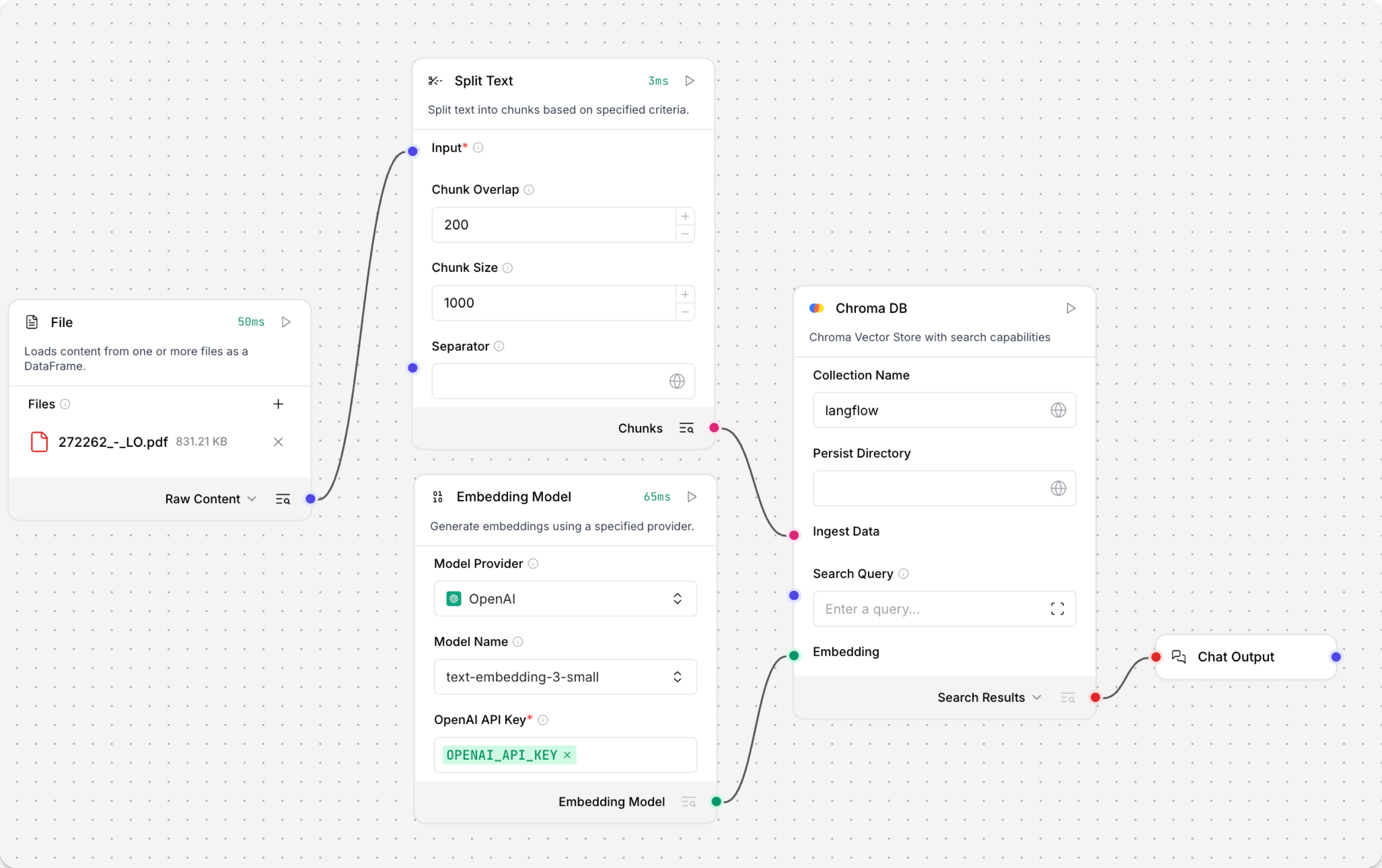
The Load Data subflow is separate from the Retriever subflow because you probably won't run it every time you use the chat. You can run the Load Data subflow as needed to preload or update the data in your vector store. Then, your chat interactions only use the components that are necessary for chat.
If your vector store already contains data that you want to use for vector search, then you don't need to run the Load Data subflow.
-
Open the Playground and start chatting to run the Retriever subflow.
The Retriever subflow generates an embedding from chat input, runs a vector search to retrieve similar content from your vector store, parses the search results into supplemental context for the LLM, and then uses the LLM to generate a natural language response to your query. The LLM uses the vector search results along with its internal training data and tools, such as basic web search and datetime information, to produce the response.
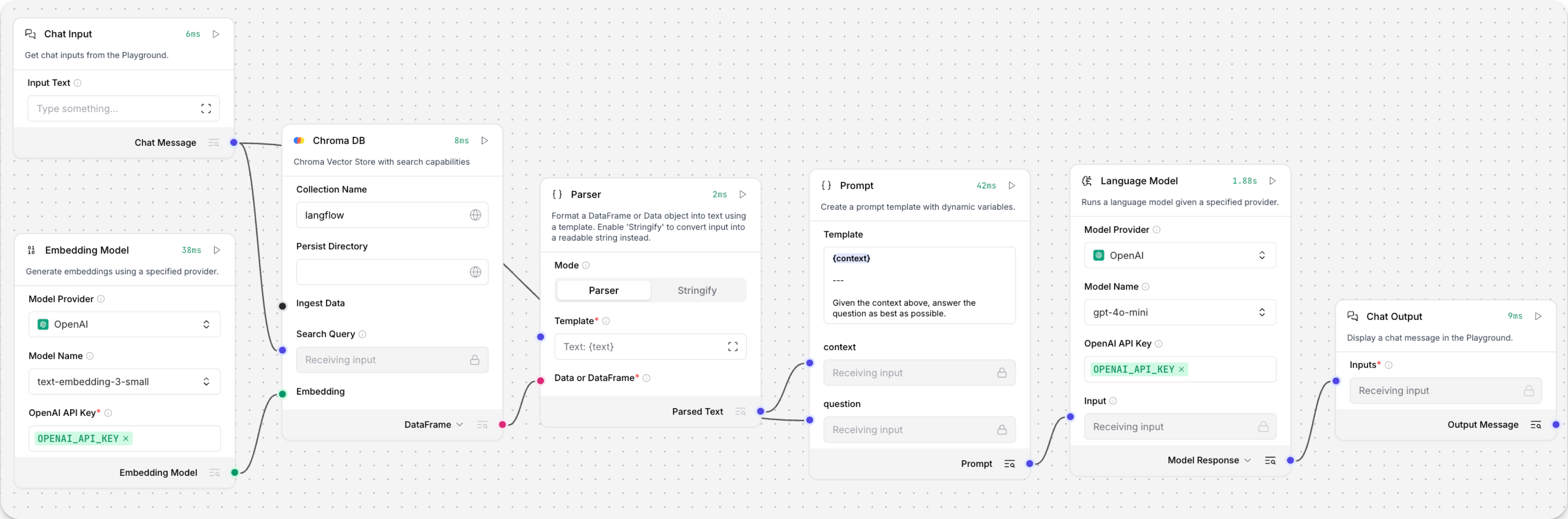
To avoid passing the entire block of raw search results to the LLM, the Parser component extracts
textstrings from the search resultsJSONobject, and then passes them to the Prompt Template component inMessageformat. From there, the strings and other template content are compiled into natural language instructions for the LLM.You can use other components for this transformation, such as the JSON Operations component, depending on how you want to use the search results.
To view the raw search results, click Inspect output on the vector store component after running the Retriever subflow.
Example: Hybrid search
The Astra DB component supports the Data API's hybrid search feature. Hybrid search performs a vector similarity search and a lexical search, compares the results of both searches, and then returns the most relevant results overall.
To use hybrid search through the Astra DB component, do the following:
-
Use the Data API to create a collection that supports hybrid search if you don't already have one.
Although you can create a collection through the Astra DB component, you have more control and insight into the collection settings when using the Data API for this operation.
-
Create a flow based on the Hybrid Search RAG template, which includes an Astra DB component that is pre-configured for hybrid search.
After loading the template, check for Upgrade available alerts on the components. If any components have an upgrade pending, upgrade and reconnect them before continuing.
-
In the Language Model components, add your OpenAI API key. If you want to use a different provider or model, see Language model components.
-
Delete the Language Model component that is connected to the Structured Output component's Input Message port, and then connect the Chat Input component to that port.
-
Configure the Astra DB vector store component:
- Enter your Astra DB application token.
- In the Database field, select your database.
- In the Collection field, select your collection with hybrid search enabled.
Once you select a collection that supports hybrid search, the other parameters automatically update to allow hybrid search options.
-
Connect the first Parser component's Parsed Text output to the Astra DB component's Lexical Terms input. This input only appears after connecting a collection that support hybrid search with reranking.
-
Update the Structured Output template:
-
Click the Structured Output component to expose the component inspection panel.
-
Find the Format Instructions row, click Expand, and then replace the prompt with the following text:
You are a database query planner that takes a user's requests, and then converts to a search against the subject matter in question.You should convert the query into:1. A list of keywords to use against a Lucene text analyzer index, no more than 4. Strictly unigrams.2. A question to use as the basis for a QA embedding engine.Avoid common keywords associated with the user's subject matter. -
Click Finish Editing, and then click Close to save your changes to the component.
-
-
Open the Playground, and then enter a natural language question that you would ask about your database.
In this example, your input is sent to both the Astra DB and Structured Output components:
-
The input sent directly to the Astra DB component's Search Query port is used as a string for similarity search. An embedding is generated from the query string using the collection's Astra DB vectorize integration.
-
The input sent to the Structured Output component is processed by the Structured Output, Language Model, and Parser components to extract space-separated
keywordsused for the lexical search portion of the hybrid search.
The complete hybrid search query is executed against your database using the Data API's
find_and_rerankcommand. The API's response is output as aTablethat is transformed into a text stringMessageby another Parser component. Finally, the Chat Output component prints theMessageresponse to the Playground. -
-
Optional: Exit the Playground, and then click Inspect Output on each individual component to understand how lexical keywords were constructed and view the raw response from the Data API. This is helpful for debugging flows where a certain component isn't receiving input as expected from another component.
-
Structured Output component: The output is the
JSONobject produced by applying the output schema to the LLM's response to the input message and format instructions. The following example is based on the aforementioned instructions for keyword extraction:1. Keywords: features, data, attributes, characteristics2. Question: What characteristics can be identified in my data? -
Parser component: The output is the string of keywords extracted from the structured output
JSON, and then used as lexical terms for the hybrid search. -
Astra DB component: The output is the
Tablecontaining the results of the hybrid search as returned by the Data API.
-
Astra DB output
If you use a vector store component to query your vector database, it produces search results that you can pass to downstream components in your flow as a list of JSON objects or a tabular Table.
If both types are supported, you can set the format near the vector store component's output port in the visual editor.
Vector Store Connection port
The Astra DB component has an additional Vector Store Connection output.
This output can only connect to a VectorStore input port, and it was intended for use with dedicated Graph RAG components.
The only non-legacy component that supports this input is the Graph RAG component, which can be a Graph RAG extension to the Astra DB component. Instead, use the Astra DB Graph component that includes both the vector store connection and Graph RAG functionality.
Astra DB CQL
The Astra DB CQL component allows agents to query data from CQL tables in Astra DB.
The output is a list of JSON objects containing the query results from the Astra DB CQL table. Each Data object contains the document fields specified by the projection fields. Limited by the number_of_results parameter.
Astra DB CQL parameters
Some parameters are hidden by default in the visual editor. You can modify all component parameters through the component inspection panel that appears when you select a component.
| Name | Type | Description |
|---|---|---|
| Tool Name | String | Input parameter. The name used to reference the tool in the agent's prompt. |
| Tool Description | String | Input parameter. A brief description of the tool to guide the model in using it. |
| Keyspace | String | Input parameter. The name of the keyspace. |
| Table Name | String | Input parameter. The name of the Astra DB CQL table to query. |
| Token | SecretString | Input parameter. The authentication token for Astra DB. |
| API Endpoint | String | Input parameter. The Astra DB API endpoint. |
| Projection Fields | String | Input parameter. The attributes to return, separated by commas. Default: "*". |
| Partition Keys | Dict | Input parameter. Required parameters that the model must fill to query the tool. |
| Clustering Keys | Dict | Input parameter. Optional parameters the model can fill to refine the query. Required parameters should be marked with an exclamation mark, for example, !customer_id. |
| Static Filters | Dict | Input parameter. Attribute-value pairs used to filter query results. |
| Limit | String | Input parameter. The number of records to return. |
Astra DB Data API
The Astra DB Data API component runs document-level Data API operations — find, find_one, insert_one, insert_many, update_one, update_many, delete_one, delete_many, count_documents, and estimated_document_count — against a collection using the astrapy Python SDK directly.
Unlike the Astra DB component, which wraps AstraDBVectorStore from langchain-astradb and is oriented around vector ingest/search, the Astra DB Data API component is a thin, direct pass-through to astrapy. No langchain-astradb code path is used at runtime, which makes it a good fit for:
- Exact-match and compound metadata queries on collections that may or may not be vector-enabled.
- CRUD-style writes and updates (
$set,$inc,$push,$unset, and other Data API operators). - Document counts (bounded with
count_documents, statistical withestimated_document_count). - Wiring an agent tool that can both read and write to Astra DB.
The component also provides an astrapy-only "Create new collection" dialog (equivalent to the one on the Astra DB component) so you can spin up a collection — with or without a vectorize integration — without installing langchain-astradb.
The operation tab dynamically shows and hides only the inputs relevant to the selected operation, so the configuration surface stays minimal. For example, selecting Insert One hides all filter/projection/sort inputs and shows a single Document input.
Astra DB Data API parameters
Some parameters are hidden by default in the visual editor. You can modify all component parameters through the component inspection panel that appears when you select a component.
| Name | Display Name | Info |
|---|---|---|
| token | Astra DB Application Token | Input parameter. An Astra application token with permission to access your database. |
| environment | Environment | Input parameter. The Astra DB environment, typically prod. |
| database_name | Database | Input parameter. The database the component will connect to. Supports in-app database creation. |
| api_endpoint | Astra DB API Endpoint | Input parameter. Auto-populated from the selected database. |
| keyspace | Keyspace | Input parameter. Defaults to default_keyspace. |
| collection_name | Collection | Input parameter. The target collection. Supports in-app collection creation via astrapy directly (no langchain-astradb dependency). |
| operation | Operation | Input parameter. One of Find, Find One, Insert One, Insert Many, Update One, Update Many, Delete One, Delete Many, Count Documents, Estimated Count. |
| filter_query | Filter | Input parameter. MongoDB-style filter document, e.g. {"status": "active", "age": {"$gte": 18}}. Used by find, update, delete, and count operations. |
| projection | Projection | Input parameter. Fields to include (1) or exclude (0), e.g. {"name": 1, "email": 1}. |
| sort | Sort | Input parameter. Sort specification. Use $vector or $vectorize for vector search, e.g. {"$vectorize": "search query"}. |
| limit | Limit | Input parameter. Maximum number of documents returned by find. Default: 100. |
| skip | Skip | Input parameter. Number of documents to skip. |
| include_similarity | Include Similarity | Input parameter. Include the $similarity score on returned documents (vector searches only). |
| document | Document | Input parameter. Single JSON document for Insert One. |
| documents | Documents | Input parameter. List of JSON documents for Insert Many. |
| ordered | Ordered Insert | Input parameter. If true, Insert Many stops at the first error. Default: false. |
| update | Update | Input parameter. Update-operator document for Update One / Update Many, e.g. {"$set": {"status": "archived"}}. |
| upsert | Upsert | Input parameter. If true, inserts a new document when no match is found. Default: false. |
| upper_bound | Count Upper Bound | Input parameter. Maximum count count_documents will scan to. Default: 1000. |
Astra DB Data API outputs
| Output | Type | Description |
|---|---|---|
| Data | list[Data] | List of JSON documents returned by the selected operation. Writes return a single-element list summarising the result (e.g. inserted_ids, modified_count, deleted_count). |
| Table | Table | The same result expressed as a tabular Table for easy preview and downstream tabular processing. |
| Raw Result | Data | The raw astrapy result envelope as a single JSON object — useful for debugging or accessing fields like matched_count vs modified_count. |
Because key inputs (operation, filter_query, limit, document, documents, update) expose Tool Mode, the component can also be connected to an Agent component as a tool. When used as a tool, the agent controls the selected operation and the payload while you retain control of the database, keyspace, and collection via the component's configuration.
Astra DB Data API examples
Example: Insert documents
-
In a flow, add the Astra DB Data API component.
-
Provide a token and select a database, keyspace, and collection.
-
Set Operation to Insert Many.
-
In Documents, provide a JSON list of documents, for example:
[{"name": "Ada Lovelace", "role": "engineer"},{"name": "Grace Hopper", "role": "engineer"}] -
Run the component. The Data output contains a single summary object with
inserted_idsandinserted_count.
Example: Filter-based search
-
Set Operation to Find.
-
In Filter, provide a MongoDB-style filter, for example:
{"role": "engineer", "active": true} -
Optionally set Projection (e.g.
{"name": 1, "role": 1}), Sort, and Limit. -
Run the component. The Data output contains matching documents as a list of JSON objects; the Table output renders the same result as a
Table.
Example: Use as an agent tool
- In a flow with an Agent component, add the Astra DB Data API component.
- Select the database, keyspace, and collection.
- Toggle Tool Mode on the Astra DB Data API component, and connect its tool output to the agent's Tools input.
- Leave Operation, Filter, Limit, Document, Documents, and Update unset — the agent will populate them per tool call based on the user's request.
Graph RAG
The Graph RAG component uses an instance of GraphRetriever for Graph RAG traversal enabling graph-based document retrieval in an Astra DB vector store.
For more information, see the DataStax Graph RAG documentation.
Graph RAG parameters
You can inspect a vector store component's parameters to learn more about the inputs it accepts, the features it supports, and how to configure it.
Some parameters are hidden by default in the visual editor. You can modify all component parameters through the component inspection panel that appears when you select a component.
Some parameters are conditional, and they are only available after you set other parameters or select specific options for other parameters. Conditional parameters may not be visible on the Controls pane until you set the required dependencies.
| Name | Display Name | Info |
|---|---|---|
| embedding_model | Embedding Model | Input parameter. Specify the embedding model to use. Not required if the connected vector store has a vectorize integration. |
| vector_store | Vector Store Connection | Input parameter. An instance of AstraDbVectorStore inherited from the Astra DB component's Vector Store Connection output. |
| edge_definition | Edge Definition | Input parameter. Edge definition for the graph traversal. |
| strategy | Traversal Strategies | Input parameter. The strategy to use for graph traversal. Strategy options are dynamically loaded from available strategies. |
| search_query | Search Query | Input parameter. The query to search for in the vector store. |
| graphrag_strategy_kwargs | Strategy Parameters | Input parameter. Optional dictionary of additional parameters for the retrieval strategy. |
| search_results | Search Results or DataFrame | Output parameter. The results of the graph-based document retrieval as a list of JSON objects or as a tabular Table. You can set the desired output type near the component's output port. |
Hyper-Converged Database (HCD)
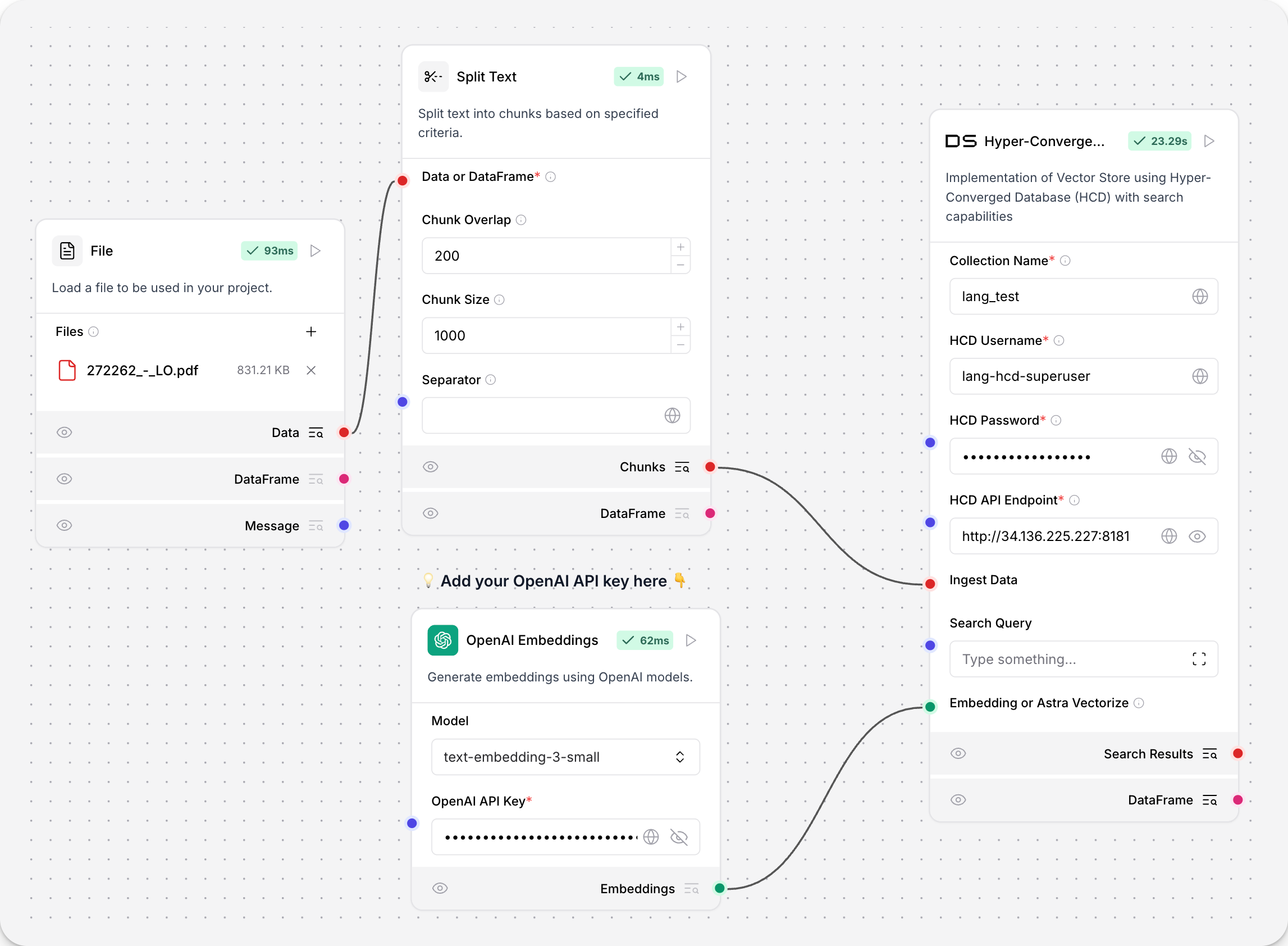
The Hyper-Converged Database (HCD) component uses your cluster's Data API server to read and write to your HCD vector store.
Because the underlying functions call the Data API, which originated from Astra DB, the component uses an instance of AstraDBVectorStore.
About vector store instances
Because Langflow is based on LangChain, vector store components use an instance of LangChain vector store to drive the underlying read and write functions. These instances are provider-specific and configured according to the component's parameters, such as the connection string, index name, and schema.
In component code, this is often instantiated as vector_store, but some vector store components use a different name, such as the provider name.
Some LangChain classes don't expose all possible options as component parameters. Depending on the provider, these options might use default values or allow modification through environment variables, if they are supported in Langflow. For information about specific options, see the LangChain API reference and vector store provider's documentation.
If you use a vector store component to query your vector database, it produces search results that you can pass to downstream components in your flow as a list of JSON objects or a tabular Table.
If both types are supported, you can set the format near the vector store component's output port in the visual editor.
For more information about HCD, see Get started with HCD 1.2 and Get started with the Data API in HCD 1.2.
HCD parameters
You can inspect a vector store component's parameters to learn more about the inputs it accepts, the features it supports, and how to configure it.
Some parameters are hidden by default in the visual editor. You can modify all component parameters through the component inspection panel that appears when you select a component.
Some parameters are conditional, and they are only available after you set other parameters or select specific options for other parameters. Conditional parameters may not be visible on the Controls pane until you set the required dependencies.
| Name | Display Name | Info |
|---|---|---|
| collection_name | Collection Name | Input parameter. The name of a vector store collection in HCD. For write operations, if the collection doesn't exist, then a new one is created. Required. |
| username | HCD Username | Input parameter. Username for authenticating to your HCD deployment. Default: hcd-superuser. Required. |
| password | HCD Password | Input parameter. Password for authenticating to your HCD deployment. Required. |
| api_endpoint | HCD API Endpoint | Input parameter. Your deployment's HCD Data API endpoint, formatted as http[s]://CLUSTER_HOST:GATEWAY_PORT where CLUSTER_HOST is the IP address of any node in your cluster and GATEWAY_PORT is the port number for your API gateway service. For example, http://192.0.2.250:8181. Required. |
| ingest_data | Ingest Data | Input parameter. Records to load into the vector store. Only relevant for writes. |
| search_input | Search Input | Input parameter. Query string for similarity search. Only relevant to reads. |
| namespace | Namespace | Input parameter. The namespace in HCD that contains or will contain the collection specified in collection_name. Default: default_namespace. |
| ca_certificate | CA Certificate | Input parameter. Optional CA certificate for TLS connections to HCD. |
| metric | Metric | Input parameter. The metrics to use for similarity search calculations, either cosine, dot_product, or euclidean. This is a collection setting. If calling an existing collection, leave unset to use the collection's metric. If a write operation creates a new collection, specify the desired similarity metric setting. |
| batch_size | Batch Size | Input parameter. Optional number of records to process in a single batch. |
| bulk_insert_batch_concurrency | Bulk Insert Batch Concurrency | Input parameter. Optional concurrency level for bulk write operations. |
| bulk_insert_overwrite_concurrency | Bulk Insert Overwrite Concurrency | Input parameter. Optional concurrency level for bulk write operations that allow upserts (overwriting existing records). |
| bulk_delete_concurrency | Bulk Delete Concurrency | Input parameter. Optional concurrency level for bulk delete operations. |
| setup_mode | Setup Mode | Input parameter. Configuration mode for setting up the vector store, either Sync (default), Async, or Off. |
| pre_delete_collection | Pre Delete Collection | Input parameter. Whether to delete the collection before creating a new one. |
| metadata_indexing_include | Metadata Indexing Include | Input parameter. A list of metadata fields to index if you want to enable selective indexing only when creating a collection. Doesn't apply to existing collections. Only one *_indexing_* parameter can be set per collection. If all *_indexing_* parameters are unset, then all fields are indexed (default indexing). |
| metadata_indexing_exclude | Metadata Indexing Exclude | Input parameter. A list of metadata fields to exclude from indexing if you want to enable selective indexing only when creating a collection. Doesn't apply to existing collections. Only one *_indexing_* parameter can be set per collection. If all *_indexing_* parameters are unset, then all fields are indexed (default indexing). |
| collection_indexing_policy | Collection Indexing Policy | Input parameter. A dictionary to define the indexing policy if you want to enable selective indexing only when creating a collection. Doesn't apply to existing collections. Only one *_indexing_* parameter can be set per collection. If all *_indexing_* parameters are unset, then all fields are indexed (default indexing). The collection_indexing_policy dictionary is used when you need to set indexing on subfields or a complex indexing definition that isn't compatible as a list. |
| embedding | Embedding or Astra Vectorize | Input parameter. The embedding model to use by attaching an Embedding Model component. This component doesn't support additional vectorize authentication headers, so it isn't possible to use a vectorize integration with this component, even if you have enabled one on an existing HCD collection. |
| number_of_results | Number of Results | Input parameter. Number of search results to return. Default: 4. Only relevant to reads. |
| search_type | Search Type | Input parameter. Search type to use, either Similarity (default), Similarity with score threshold, or MMR (Max Marginal Relevance). Only relevant to reads. |
| search_score_threshold | Search Score Threshold | Input parameter. Minimum similarity score threshold for search results if the search_type is Similarity with score threshold. Default: 0. |
| search_filter | Search Metadata Filter | Input parameter. Optional dictionary of metadata filters to apply in addition to vector search. |
Other DataStax components
The following components are also included in the DataStax bundle.
Astra DB Chat Memory
The Astra DB Chat Memory component retrieves and stores chat messages using an Astra DB database.
Chat memories are passed between memory storage components as the Memory data type.
Specifically, the component creates an instance of AstraDBChatMessageHistory, which is a LangChain chat message history class that uses Astra DB for storage.
The Astra DB Chat Memory component isn't recommended for most memory storage because memories tend to be long JSON objects or strings, often exceeding the maximum size of a document or object supported by Astra DB.
However, Langflow's Agent component includes built-in chat memory that is enabled by default. Your agentic flows don't need an external database to store chat memory. For more information, see Memory management options.
For more information about using external chat memory in flows, see the Message History component.
Astra DB Chat Memory parameters
Some parameters are hidden by default in the visual editor. You can modify all component parameters through the component inspection panel that appears when you select a component.
| Name | Type | Description |
|---|---|---|
| collection_name | String | Input parameter. The name of the Astra DB collection for storing messages. Required. |
| token | SecretString | Input parameter. The authentication token for Astra DB access. Required. |
| api_endpoint | SecretString | Input parameter. The API endpoint URL for the Astra DB service. Required. |
| namespace | String | Input parameter. The optional namespace within Astra DB for the collection. |
| session_id | MessageText | Input parameter. The unique identifier for the chat session. Uses the current session ID if not provided. |
Legacy DataStax components
Legacy components are no longer supported and can be removed in a future release. You can continue to use them in existing flows, but it is recommended that you replace them with supported components as soon as possible. Suggested replacements are included in the Legacy banner on components in your flows. They are also given in release notes and Langflow documentation whenever possible.
If you aren't sure how to replace a legacy component, Search for components by provider, service, or component name. The component may have been deprecated in favor of a completely new component, a similar component, or a new version of the same component in a different category.
If there is no obvious replacement, consider whether another component can be adapted to your use case. For example, many Core components provide generic functionality that can support multiple providers and use cases, such as the API Request component.
If neither of these options are viable, you could use the legacy component's code to create your own custom component, or start a discussion about the legacy component.
To discourage use of legacy components in new flows, these components are hidden by default. In the visual editor, you can click Component settings to toggle the Legacy filter.
The following DataStax components are in legacy status:
Astra DB Tool
Replace the Astra DB Tool component with the Astra DB component.
The Astra DB Tool component enables searching data in Astra DB collections, including hybrid search, vector search, and regular filter-based search. Specialized searches require that the collection is pre-configured with the required parameters.
Outputs a list of JSON objects containing the query results from Astra DB. Each JSON object contains the document fields specified by the projection attributes. Limited by the number_of_results parameter and the upper limit of the Astra DB Data API, depending on the type of search.
You can use the component to execute queries directly as isolated steps in a flow, or you can connect it as a tool for an agent to allow the agent to query data from Astra DB collections as needed to respond to user queries.
The values for Collection Name, Astra DB Application Token, and Astra DB API Endpoint are found in your Astra DB deployment. For more information, see the Astra DB Serverless documentation.
| Name | Type | Description |
|---|---|---|
| Tool Name | String | Input parameter. The name used to reference the tool in the agent's prompt. |
| Tool Description | String | Input parameter. A brief description of the tool. This helps the model decide when to use it. |
| Keyspace Name | String | Input parameter. The name of the keyspace in Astra DB. Default: default_keyspace |
| Collection Name | String | Input parameter. The name of the Astra DB collection to query. |
| Token | SecretString | Input parameter. The authentication token for accessing Astra DB. |
| API Endpoint | String | Input parameter. The Astra DB API endpoint. |
| Projection Fields | String | Input parameter. Comma-separated list of attributes to return from matching documents. The default is the default projection, *, which returns all attributes except reserved fields like $vector. |
| Tool Parameters | Dict | Input parameter. Astra DB Data API find filters that become tools for an agent. These Filters may be used in a search, if the agent selects them. |
| Static Filters | Dict | Input parameter. Attribute-value pairs used to filter query results. Equivalent to Astra DB Data API find filters. Static Filters are included with every query. Use Static Filters without semantic search to perform a regular filter search. |
| Number of Results | Int | Input parameter. The maximum number of documents to return. |
| Semantic Search | Boolean | Input parameter. Whether to run a similarity search by generating a vector embedding from the chat input and following the Semantic Search Instruction. Default: false. If true, you must attach an embedding model component or have vectorize pre-enabled on your collection. |
| Use Astra DB Vectorize | Boolean | Input parameter. Whether to use the Astra DB vectorize feature for embedding generation when running a semantic search. Default: false. If true, you must have vectorize pre-enabled on your collection. |
| Embedding Model | Embedding | Input parameter. A port to attach an embedding model component to generate a vector from input text for semantic search. This can be used when Semantic Search is true, with or without vectorize. Be sure to use a model that aligns with the dimensions of the embeddings already present in the collection. |
| Semantic Search Instruction | String | Input parameter. The query to use for similarity search. Default: "Find documents similar to the query.". This instruction is used to guide the model in performing semantic search. |
Astra DB Graph
Replace the Astra DB Graph component with the Graph RAG component.
The Astra DB Graph component uses AstraDBGraphVectorStore, an instance of LangChain graph vector store, for graph traversal and graph-based document retrieval in an Astra DB collection. It also supports writing to the vector store.
For more information, see Build a Graph RAG system with LangChain and GraphRetriever.
You can inspect a vector store component's parameters to learn more about the inputs it accepts, the features it supports, and how to configure it.
Some parameters are hidden by default in the visual editor. You can modify all component parameters through the component inspection panel that appears when you select a component.
Some parameters are conditional, and they are only available after you set other parameters or select specific options for other parameters. Conditional parameters may not be visible on the Controls pane until you set the required dependencies.
For information about accepted values and functionality, see the Astra DB Serverless documentation or inspect component code.
| Name | Display Name | Info |
|---|---|---|
| token | Astra DB Application Token | Input parameter. An Astra application token with permission to access your vector database. Once the connection is verified, additional fields are populated with your existing databases and collections. If you want to create a database through this component, the application token must have Organization Administrator permissions. |
| api_endpoint | API Endpoint | Input parameter. Your database's API endpoint. |
| keyspace | Keyspace | Input parameter. The keyspace in your database that contains the collection specified in collection_name. Default: default_keyspace. |
| collection_name | Collection | Input parameter. The name of the collection that you want to use with this flow. For write operations, if a matching collection doesn't exist, a new one is created. |
| metadata_incoming_links_key | Metadata Incoming Links Key | Input parameter. The metadata key for the incoming links in the vector store. |
| ingest_data | Ingest Data | Input parameter. Records to load into the vector store. Only relevant for writes. |
| search_input | Search Query | Input parameter. Query string for similarity search. Only relevant to reads. |
| cache_vector_store | Cache Vector Store | Input parameter. Whether to cache the vector store in Langflow memory for faster reads. Default: Enabled (true). |
| embedding_model | Embedding Model | Input parameter. Attach an embedding model component to generate embeddings. If the collection has a vectorize integration, don't attach an embedding model component. |
| metric | Metric | Input parameter. The metrics to use for similarity search calculations, either cosine (default), dot_product, or euclidean. This is a collection setting. |
| batch_size | Batch Size | Input parameter. Optional number of records to process in a single batch. |
| bulk_insert_batch_concurrency | Bulk Insert Batch Concurrency | Input parameter. Optional concurrency level for bulk write operations. |
| bulk_insert_overwrite_concurrency | Bulk Insert Overwrite Concurrency | Input parameter. Optional concurrency level for bulk write operations that allow upserts (overwriting existing records). |
| bulk_delete_concurrency | Bulk Delete Concurrency | Input parameter. Optional concurrency level for bulk delete operations. |
| setup_mode | Setup Mode | Input parameter. Configuration mode for setting up the vector store, either Sync (default) or Off. |
| pre_delete_collection | Pre Delete Collection | Input parameter. Whether to delete the collection before creating a new one. Default: Disabled (false). |
| metadata_indexing_include | Metadata Indexing Include | Input parameter. A list of metadata fields to index if you want to enable selective indexing only when creating a collection. Doesn't apply to existing collections. Only one *_indexing_* parameter can be set per collection. If all *_indexing_* parameters are unset, then all fields are indexed (default indexing). |
| metadata_indexing_exclude | Metadata Indexing Exclude | Input parameter. A list of metadata fields to exclude from indexing if you want to enable selective indexing only when creating a collection. Doesn't apply to existing collections. Only one *_indexing_* parameter can be set per collection. If all *_indexing_* parameters are unset, then all fields are indexed (default indexing). |
| collection_indexing_policy | Collection Indexing Policy | Input parameter. A dictionary to define the indexing policy if you want to enable selective indexing only when creating a collection. Doesn't apply to existing collections. Only one *_indexing_* parameter can be set per collection. If all *_indexing_* parameters are unset, then all fields are indexed (default indexing). The collection_indexing_policy dictionary is used when you need to set indexing on subfields or a complex indexing definition that isn't compatible as a list. |
| number_of_results | Number of Results | Input parameter. Number of search results to return. Default: 4. Only relevant to reads. |
| search_type | Search Type | Input parameter. Search type to use, either Similarity, Similarity with score threshold, or MMR (Max Marginal Relevance), Graph Traversal, or MMR (Max Marginal Relevance) Graph Traversal (default). Only relevant to reads. |
| search_score_threshold | Search Score Threshold | Input parameter. Minimum similarity score threshold for search results if the search_type is Similarity with score threshold. Default: 0. |
| search_filter | Search Metadata Filter | Input parameter. Optional dictionary of metadata filters to apply in addition to vector search. |
Environment variable components
The following DataStax components were used to load and retrieve environment variables in a flow:
- Dotenv: Loads environment variables from a
.envfile - Get Environment Variable: Retrieves the value of an environment variable
These components are legacy. Use Langflow's built-in environment variable support or global variables instead.
Astra Vectorize
This component was deprecated in Langflow version 1.1.2. Replace it with the Astra DB component.
The Astra DB Vectorize component was used to generate embeddings with Astra DB's vectorize feature in conjunction with an Astra DB component.
The vectorize functionality is now built into the Astra DB component. You no longer need a separate component for vectorize embedding generation.
See also
Was this page helpful?