Message History
The Message History component provides combined chat history and message storage functionality. It can store and retrieve chat messages from either Langflow storage or a dedicated chat memory database like Mem0 or Redis.
The Agent component has built-in chat memory that is enabled by default and uses Langflow storage. This built-in chat memory functionality is sufficient for most use cases.
Use the Message History component for the following use cases:
- You need to store and retrieve chat memory for a language model component (not an agent).
- You need to retrieve chat memories outside the chat context, such as a sentiment analysis flow that retrieves and analyzes recently stored memories.
- You want to store memories in a specific database that is separate from Langflow storage.
For more information, see Store chat memory.
Use the Message History component in a flow
The Message History component has two modes, depending on where you want to use it in your flow:
- Retrieve mode: The component retrieves chat messages from your Langflow database or external memory.
- Store mode: The component stores chat messages in your Langflow database or external memory.
This means that you need multiple Message History components in your flow if you want to both store and retrieve chat messages.
- Use Langflow storage
- Use external chat memory
The following steps explain how to create a chat-based flow that uses Message History components to store and retrieve chat memory from your Langflow installation's database:
-
Create or edit a flow where you want to use chat memory.
-
At the beginning of the flow, add a Message History component, and then set it to Retrieve mode.
-
Optional: To enable parameters for memory sorting, filtering, and limits, click the Message History component to expose the component inspection panel.
-
Add a Prompt Template component, add a
{memory}variable to the Template field, and then connect the Message History output to the memory input.The Prompt Template component supplies instructions and context to LLMs, separate from chat messages passed through a Chat Input component. The template can include any text and variables that you want to supply to the LLM, for example:
You are a helpful assistant that answers questions.Use markdown to format your answer, properly embedding images and urls.History:{memory}Variables (
{variable}) in the template dynamically add fields to the Prompt Template component so that your flow can receive definitions for those values from elsewhere, such as other components, Langflow global variables, or runtime input. For more information, see Define variables in prompts.In this example, the
{memory}variable is populated by the retrieved chat memories, which are then passed to a Language Model or Agent component to provide additional context to the LLM. -
Connect the Prompt Template component's output to a Language Model component's System Message input.
This example uses the Language Model core component as the central chat driver, but you can also use another language model component or the Agent component.
-
Add a Chat Input component, and then connect it to the Language Model component's Input field.
-
Connect the Language Model component's output to a Chat Output component.
-
At the end of the flow, add another Message History component, and then set it to Store mode.
Configure any additional parameters in the second Message History component as needed, taking into consideration that this particular component will store chat messages rather than retrieve them.
-
Connect the Chat Output component's output to the Message History component's Message input.
Each response from the LLM is output from the Language Model component to the Chat Output component, and then stored in chat memory by the final Message History component.
To store and retrieve chat memory from a dedicated, external chat memory database, use the Message History component and a provider-specific chat memory component.
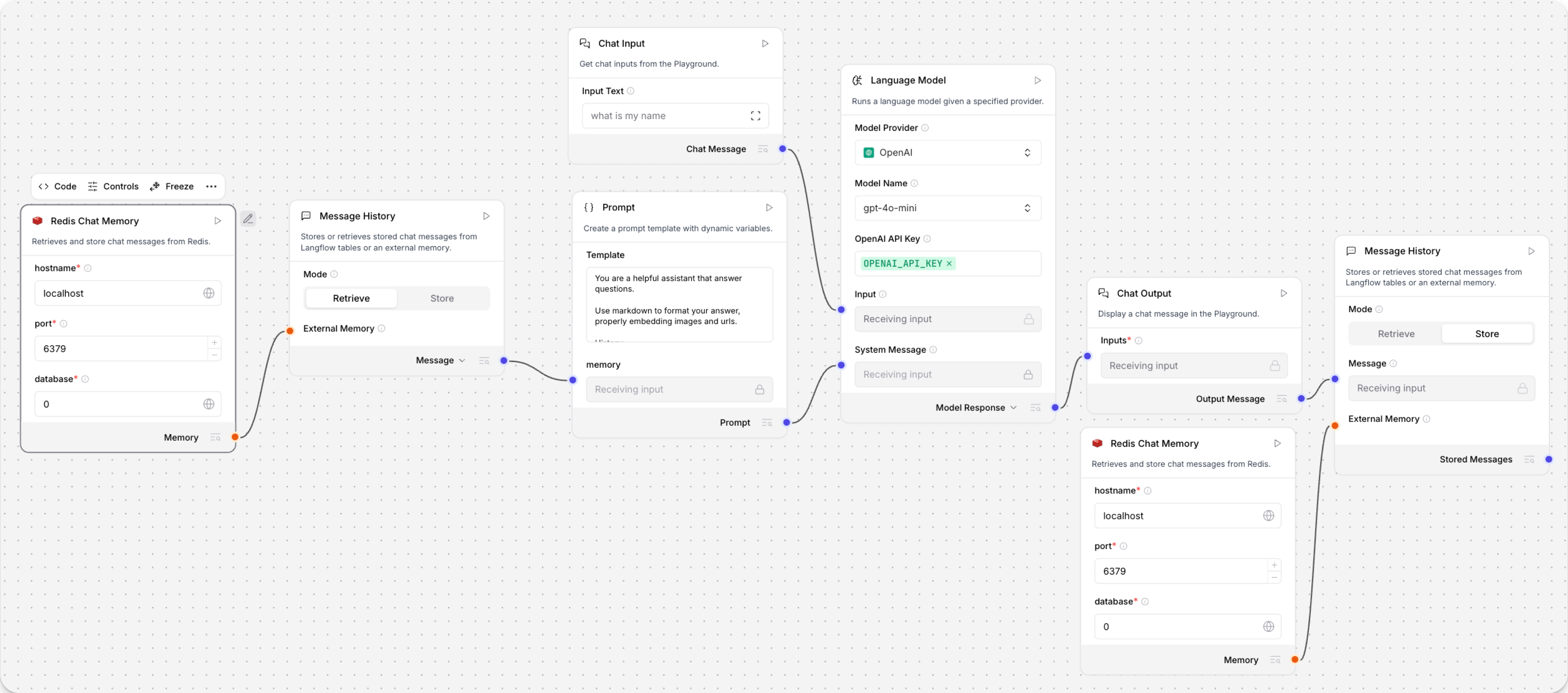
The following steps explain how to create a flow that stores and retrieves chat memory from a Redis Chat Memory component. Other options include the Mem0 Chat Memory component and Cassandra Chat Memory component.
-
Create or edit a flow where you want to use chat memory.
-
At the beginning of the flow, add a Message History component and a Redis Chat Memory component:
-
Configure the Redis Chat Memory component to connect to your Redis database. For more information, see the Redis documentation.
-
Set the Message History component to Retrieve mode.
-
In the Message History component inspection pane, enable External Memory.
In Controls, you can also enable parameters for memory sorting, filtering, and limits.
-
Connect the Redis Chat Memory component's output to the Message History component's External Memory input.
-
-
Add a Prompt Template component, add a
{memory}variable to the Template field, and then connect the Message History output to the memory input.The Prompt Template component supplies instructions and context to LLMs, separate from chat messages passed through a Chat Input component. The template can include any text and variables that you want to supply to the LLM, for example:
You are a helpful assistant that answers questions.Use markdown to format your answer, properly embedding images and urls.History:{memory}Variables (
{variable}) in the template dynamically add fields to the Prompt Template component so that your flow can receive definitions for those values from elsewhere, such as other components, Langflow global variables, or runtime input. For more information, see Define variables in prompts.In this example, the
{memory}variable is populated by the retrieved chat memories, which are then passed to a Language Model or Agent component to provide additional context to the LLM. -
Connect the Prompt Template component's output to a Language Model component's System Message input.
This example uses the Language Model core component as the central chat driver, but you can also use another language model component or the Agent component.
-
Add a Chat Input component, and then connect it to the Language Model component's Input input.
-
Connect the Language Model component's output to a Chat Output component.
-
At the end of the flow, add another pair of Message History and Redis Chat Memory components:
-
Configure the Redis Chat Memory component to connect to your Redis database.
-
Set the Message History component to Store mode.
-
In the Message History component inspection pane, enable External Memory.
Configure any additional parameters in this component as needed, taking into consideration that this particular component will store chat messages rather than retrieve them.
-
Connect the Redis Chat Memory component to the Message History component's External Memory input.
-
-
Connect the Chat Output component's output to the Message History component's Message input.
Each response from the LLM is output from the Language Model component to the Chat Output component, and then stored in chat memory by passing it to the final Message History and Redis Chat Memory components.
Message History parameters
Some parameters are hidden by default in the visual editor. You can modify all component parameters through the component inspection panel that appears when you select a component.
The available parameters depend on whether the component is in Retrieve or Store mode.
- Retrieve mode
- Store mode
| Name | Type | Description |
|---|---|---|
Template (template) | String | Input parameter. The template to use for formatting the data. It can contain the keys {text}, {sender} or any other key in the message data. |
External Memory (memory) | External Memory | Input parameter. Retrieve messages from an external memory. If empty, Langflow storage is used. |
Number of Messages (n_messages) | Integer | Input parameter. The number of messages to retrieve. Default: 100. |
Order (order) | String | Input parameter. The order of the messages. Default: Ascending. |
Sender Type (sender_type) | String | Input parameter. Filter by sender type, one of User, Machine, or Machine and User (default). |
Session ID (session_id) | String | Input parameter. The session ID of the chat memories to retrieve. If omitted or empty, the current session ID for the flow run is used. |
| Name | Type | Description |
|---|---|---|
Template (template) | String | Input parameter. The template to use for formatting the data. It can contain the keys {text}, {sender} or any other key in the message data. |
Message (message) | String | Input parameter. The message to store, typically provided by connecting a Chat Output component. |
External Memory (memory) | External Memory | Input parameter. Store messages in external memory. If empty, Langflow storage is used. |
Sender (sender) | String | Input parameter. Choose which messages to store based on sender, one of User, Machine, or Machine and User (default). |
Sender Name (sender_name) | String | Input parameter. A backup sender label to use if a message doesn't have sender metadata. |
Session ID (session_id) | String | Input parameter. The session ID of the chat memories to store. If omitted or empty, the current session ID for the flow run is used. Use custom session IDs if you need to segregate chat memory for different users or applications that run the same flow. |
Sender Type (sender_type) | String | Input parameter. Filter by sender type, one of User, Machine, or Machine and User (default). |
Message History output
Memories can be retrieved in one of two formats:
-
Message: Retrieve memories as
Messageobjects, includingmessages_textcontaining retrieved chat message text. This is the typical output format used to pass memories as chat messages to another component. -
DataFrame: Returns memories as a
Tablecontaining the message data. Useful for cases where you need to retrieve memories in a tabular format rather than as chat messages.
You can set the output type near the component's output port.
Was this page helpful?