Data Operations
Prior to Langflow 1.11.0, text, JSON, and table processing were handled by separate Text Operations, JSON Operations, and Table Operations components.
The Data Operations component performs operations on Message, JSON, or Table inputs.
Set Input Type to choose which operation set is available.
The output type depends on the selected operation and input type.
Use the Data Operations component in a flow
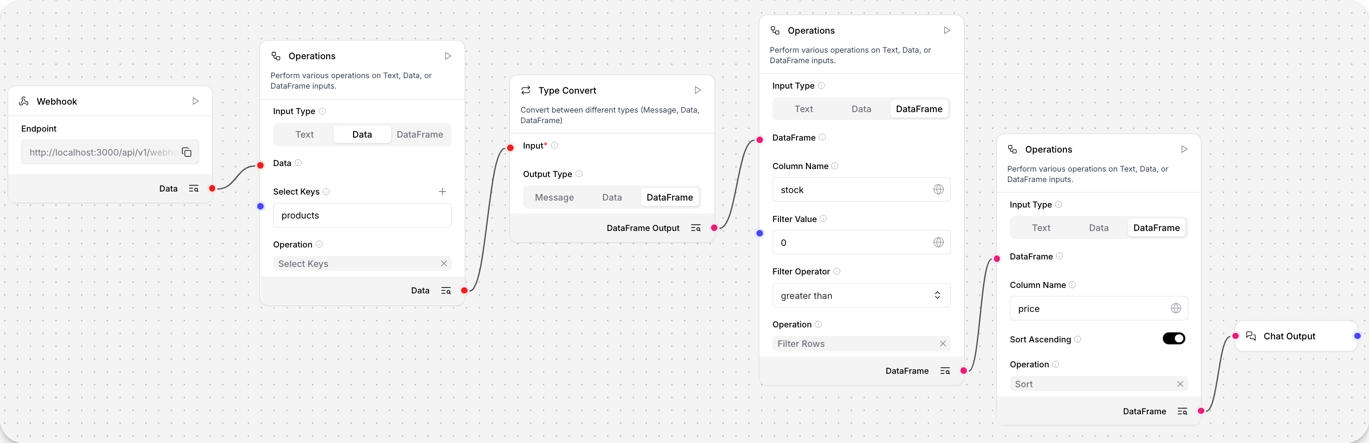
This example demonstrates a complete data transformation pipeline using multiple Data Operations components with different input types.
Send a sample JSON message to the webhook, and the pipeline extracts the products array, filters products with stock greater than zero, sorts them by price, and displays the filtered results.
-
Add a Webhook component to receive JSON data.
-
Add a Data Operations component to select keys. Set Input Type to
JSON, Operation to Select Keys, and enter the keyproductsto extract the products array. -
Add a Type Convert component to convert
JSONtoTable. Set Input Type toJSONand Output Type toTable. -
Add another Data Operations component to filter rows. Set Input Type to
Table, Operation to Filter, Column Name tostock, Filter Operator togreater than, and Filter Value to0. -
Add another Data Operations component to sort the results. Set Input Type to
Table, Operation to Sort, Column Name toprice, and enable Sort Ascending. -
Add a Chat Output component to display the results.
-
To test your flow, send the following JSON to your webhook endpoint. Replace YOUR_FLOW_ID with the UUID of your flow.
curl -X POST "http://localhost:7860/api/v1/webhook/YOUR_FLOW_ID" \-H "Content-Type: application/json" \-d '{"store": "Electronics Warehouse","location": "New York","products": [{"name": "Widget A","price": 29.99,"stock": 10,"category": "Electronics"},{"name": "Widget B","price": 49.99,"stock": 5,"category": "Electronics"},{"name": "Widget C","price": 19.99,"stock": 0,"category": "Electronics"},{"name": "Widget D","price": 39.99,"stock": 15,"category": "Electronics"},{"name": "Widget E","price": 59.99,"stock": 3,"category": "Electronics"}]}'
The result should be a Table of in-stock products sorted by price in the Playground.
To inspect each Data Operations component's transformation step in the pipeline, click Inspect output.
Examples
- Text
- JSON
- Table
Clean text from a language model
The following example demonstrates how to use a Data Operations component to clean text output from a language model before passing it to another component:
-
Create a flow with a Language Model component and a Data Operations component, and then connect the Language Model component's Message output to the Data Operations component's Text Input.
All text operations require a text string as input. If the preceding component doesn't produce
Messageor text output, you can use the Type Convert component to reformat the data first. -
Set Input Type to
Text, and then select Text Clean in the Operation field.tipYou can select only one operation. If you need to perform multiple operations, chain multiple Data Operations components together to execute each operation in sequence.
-
Enable Remove Extra Spaces and Remove Empty Lines to normalize the model's output.
-
Optional: Connect the output to a Chat Output component to view the result in the Playground.
-
Click Run component on the Data Operations component, and then click Inspect output to view the result.
Select keys from a webhook payload
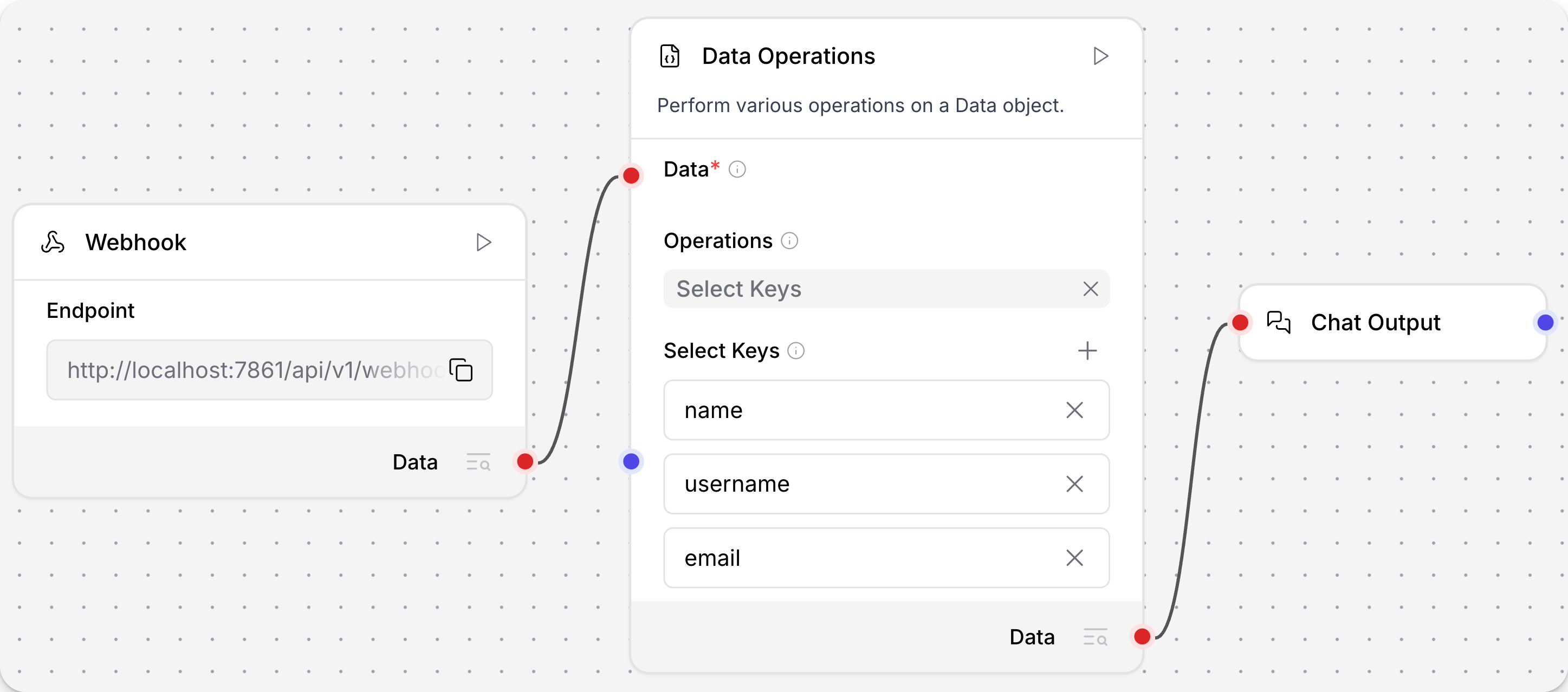
The following example demonstrates how to use a Data Operations component in a flow using data from a webhook payload:
-
Create a flow with a Webhook component and a Data Operations component, and then connect the Webhook component's output to the Data Operations component's JSON input.
All JSON operations require at least one
JSONinput from another component. If the preceding component doesn't produceJSONoutput, you can use another component, such as the Type Convert component, to reformat the data before passing it to the Data Operations component. Alternatively, you could consider using a component that is designed to process the original data type, such as the Parser component or another Data Operations component with Input Type set toTable. -
Set Input Type to
JSON, and then select Select Keys in the Operation field.tipYou can select only one operation. If you need to perform multiple operations on the data, you can chain multiple Data Operations components together to execute each operation in sequence. For more complex multi-step operations, consider using a component like the Smart Transform component.
-
Under Select Keys, add keys for
name,username, andemail. Click Add more to add a field for each key.For this example, assume that the webhook will receive consistent payloads that always contain
name,username, andemailkeys. The Select Keys operation extracts the value of these keys from each incoming payload. -
Optional: If you want to view the output in the Playground, connect the Data Operations component's output to a Chat Output component.
-
To test the flow, send the following request to your flow's webhook endpoint. For more information about the webhook endpoint, see Trigger flows with webhooks.
curl -X POST "http://$LANGFLOW_SERVER_URL/api/v1/webhook/$FLOW_ID" \-H "Content-Type: application/json" \-H "x-api-key: $LANGFLOW_API_KEY" \-d '{"id": 1,"name": "Leanne Graham","username": "Bret","email": "Sincere@april.biz","address": {"street": "Main Street","suite": "Apt. 556","city": "Springfield","zipcode": "92998-3874","geo": {"lat": "-37.3159","lng": "81.1496"}},"phone": "1-770-736-8031 x56442","website": "hildegard.org","company": {"name": "Acme-Corp","catchPhrase": "Multi-layered client-server neural-net","bs": "harness real-time e-markets"}}' -
To view the
JSONresulting from the Select Keys operation, do one of the following:- If you attached a Chat Output component, open the Playground to see the result as a chat message.
- Click Inspect output on the Data Operations component.
Path Selection operation
Use the Path Selection operation to extract values from nested JSON structures with dot notation paths.
-
Set Input Type to
JSON, and then select Path Selection in the Operation field. -
In the JSON to Map field, enter your JSON structure.
This example uses the following JSON structure.
{"user": {"profile": {"name": "John Doe","email": "john@example.com"},"settings": {"theme": "dark"}}}The Select Path dropdown auto-populates with available paths.
-
In the Select Path dropdown, select the path. You can select paths such as
.user.profile.nameto extract "John Doe", or select.user.settings.themeto extract "dark".
JQ Expression operation
Use the JQ Expression operation to use the jq query language to perform more advanced JSON filtering.
-
Set Input Type to
JSON, and then select JQ Expression in the Operation field. -
In the JQ Expression field, enter a
jqfilter to query against the Data Operations component's JSON input.For this example JSON structure, enter expressions like
.user.profile.nameto extract "John Doe",.user.profile | {name, email}to project fields to a new object, or.user.profile | tostringto convert the field to a string.{"user": {"profile": {"name": "John Doe","email": "john@example.com"},"settings": {"theme": "dark"}}}
Extract and process an API response
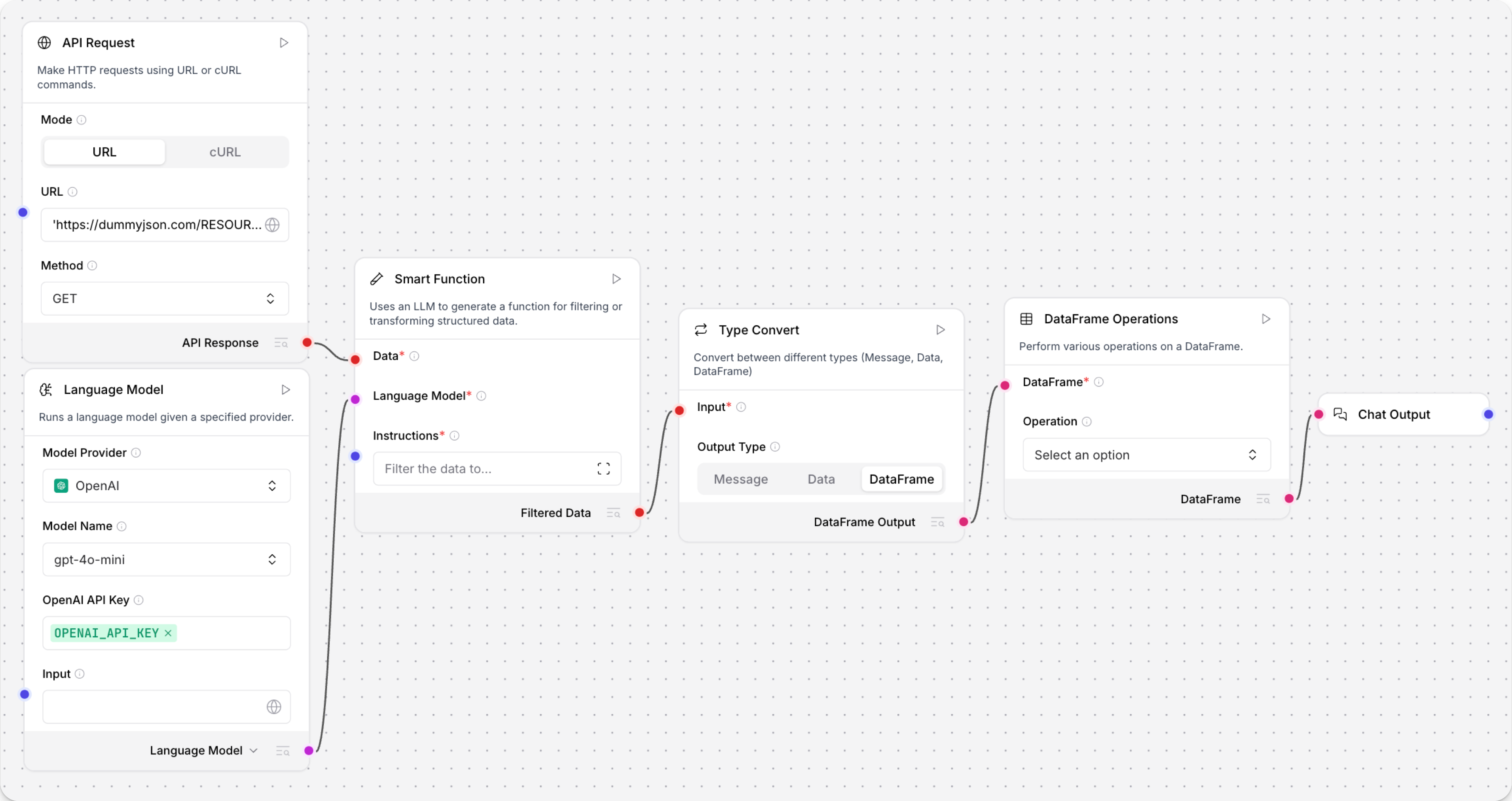
The following example flow uses five components to extract JSON from an API response, transform it to a Table, and then perform further processing on tabular data using a Data Operations component.
The sixth component, Chat Output, is optional in this example.
It only serves as a convenient way for you to view the final output in the Playground, rather than inspecting the component logs.
If you want to use this example to test the Data Operations component, do the following:
-
Create a flow with the following components:
- API Request
- Language Model
- Smart Transform
- Type Convert
-
Configure the Smart Transform component and its dependencies:
- API Request: Configure the API Request component to get JSON data from an endpoint of your choice, and then connect the API Response output to the Smart Transform component's JSON input.
- Language Model: Select your preferred provider and model, and then enter a valid API key.
Change the output to Language Model, and then connect the
LanguageModeloutput to the Smart Transform component's Language Model input. - Smart Transform: In the Instructions field, enter natural language instructions to extract data from the API response.
Your instructions depend on the response content and desired outcome.
For example, if the response contains a large
resultfield, you might provide instructions likeexplode the result field out into a JSON object.
-
Convert the Smart Transform component's output from
JSONtoTable:- Connect the Filtered Data output to the Type Convert component's JSON input.
- Set the Type Convert component's Output Type to Table.
-
Add a Data Operations component to the flow, set Input Type to
Table, and then connectTableoutput from the Type Convert component to the Table input. -
In the Operation field, select the operation you want to perform on the incoming
Table. For example, the Filter operation filters the rows based on a specified column and value.tipYou can select only one operation. If you need to perform multiple operations on the data, you can chain multiple Data Operations components together to execute each operation in sequence. For more complex multi-step operations, like dramatic schema changes or pivots, consider using an LLM-powered component, like the Structured Output component or Smart Transform component, as a replacement or preparation for the Data Operations component.
If you're following along with the example flow, select any operation that you want to apply to the data that was extracted by the Smart Transform component. To view the contents of the incoming
Table, click Run component on the Type Convert component, and then Inspect output. If theTableseems malformed, click Inspect output on each upstream component to determine where the error occurs, and then modify your flow's configuration as needed. For example, if the Smart Transform component didn't extract the expected fields, modify your instructions or verify that the given fields are present in the API Response output. -
Configure the operation's parameters. The specific parameters depend on the selected operation. For example, if you select the Filter operation, you must define a filter condition using the Column Name, Filter Value, and Filter Operator parameters. For more information, see Table operations.
-
To test the flow, click Run component on the Data Operations component, and then click Inspect output to view the new
Tablecreated from the operation.If you want to view the output in the Playground, connect the Data Operations component's output to a Chat Output component, rerun the Data Operations component, and then click Playground.
For another example, see Conditional looping.
Data Operations parameters
Many parameters are conditional based on the selected Input Type and Operation.
Some parameters are hidden by default in the visual editor. You can modify all component parameters through the component inspection panel that appears when you select a component.
- Text
- JSON
- Table
Available when Input Type is set to Text.
Most text operations return a Message.
Word Count returns a JSON object, and Text to DataFrame returns a Table.
| Name | Display Name | Info |
|---|---|---|
| text_input | Text Input | Input parameter. The text string to process. Required for all operations. |
| operation | Operation | Input parameter. The operation to perform on the text. See Available text operations. |
| case_type | Case Type | Input parameter. The case conversion to apply. Options: uppercase, lowercase, title, capitalize, swapcase. Default: lowercase. Only shown for Case Conversion. |
| search_pattern | Search Pattern | Input parameter. The text or regex pattern to find. Only shown for Text Replace. |
| replacement_text | Replacement Text | Input parameter. The text to substitute for each match. Only shown for Text Replace. |
| use_regex | Use Regex | Input parameter. If enabled, treats Search Pattern as a regular expression. Default: Disabled. Only shown for Text Replace. |
| extract_pattern | Extract Pattern | Input parameter. The regular expression pattern to match against the text. Only shown for Text Extract. |
| max_matches | Max Matches | Input parameter. Maximum number of matches to return. Default: 10. Only shown for Text Extract. |
| head_characters | Characters from Start | Input parameter. Number of characters to return from the beginning of the text. Must be non-negative. Default: 100. Only shown for Text Head. |
| tail_characters | Characters from End | Input parameter. Number of characters to return from the end of the text. Must be non-negative. Default: 100. Only shown for Text Tail. |
| strip_mode | Strip Mode | Input parameter. Which side(s) of the text to strip. Options: both (default), left, right. Only shown for Text Strip. |
| strip_characters | Characters to Strip | Input parameter. Specific characters to remove. Leave empty to strip whitespace. Only shown for Text Strip. |
| text_input_2 | Second Text Input | Input parameter. The second text string to join with the first. Only shown for Text Join. |
| remove_extra_spaces | Remove Extra Spaces | Input parameter. Collapse multiple consecutive spaces into a single space. Default: Enabled. Only shown for Text Clean. |
| remove_special_chars | Remove Special Characters | Input parameter. Remove all characters except alphanumeric and spaces. Default: Disabled. Only shown for Text Clean. |
| remove_empty_lines | Remove Empty Lines | Input parameter. Remove blank lines from the text. Default: Disabled. Only shown for Text Clean. |
| table_separator | Table Separator | Input parameter. The character used to delimit columns. Default: |. Only shown for Text to DataFrame. |
| has_header | Has Header | Input parameter. Whether the first row is a header row. Default: Enabled. Only shown for Text to DataFrame. |
| count_words | Count Words | Input parameter. Include word count and unique word count in the output. Default: Enabled. Only shown for Word Count. |
| count_characters | Count Characters | Input parameter. Include character count (with and without spaces) in the output. Default: Enabled. Only shown for Word Count. |
| count_lines | Count Lines | Input parameter. Include total and non-empty line count in the output. Default: Enabled. Only shown for Word Count. |
Available text operations
| Name | Required Inputs | Output | Process |
|---|---|---|---|
| Word Count | None | JSON | Counts words, unique words, characters, and lines in the text. |
| Case Conversion | case_type | Message | Converts the text to the specified case. |
| Text Replace | search_pattern, replacement_text, use_regex | Message | Replaces occurrences of a pattern with replacement text. |
| Text Extract | extract_pattern, max_matches | Message | Extracts all substrings matching a regex pattern, returned as newline-separated text. |
| Text Head | head_characters | Message | Returns the first n characters of the text. |
| Text Tail | tail_characters | Message | Returns the last n characters of the text. |
| Text Strip | strip_mode, strip_characters | Message | Removes whitespace or specified characters from the edges of the text. |
| Text Join | text_input_2 | Text, Message | Concatenates two text inputs separated by a newline. |
| Text Clean | remove_extra_spaces, remove_special_chars, remove_empty_lines | Message | Normalizes text by removing extra spaces, special characters, and empty lines. |
| Text to DataFrame | table_separator, has_header | Table | Converts a delimiter-separated text table into a Table. |
Available when Input Type is set to JSON.
| Name | Display Name | Info |
|---|---|---|
| data | JSON | Input parameter. The JSON object to operate on. Must be provided as JSON data type input generated by another component. If the preceding component doesn't produce JSON output, use the Type Convert component to reformat the data before passing it to the Data Operations component. |
| operation | Operation | Input parameter. The operation to perform on the data. See Available JSON operations. |
| select_keys_input | Select Keys | Input parameter. A list of keys to select from the data. |
| filter_key | Filter Key | Input parameter. The key to filter by. |
| operator | Comparison Operator | Input parameter. The operator to apply for comparing values. |
| filter_values | Filter Values | Input parameter. A list of values to filter by. |
| append_update_data | Append or Update | Input parameter. The data to append or update the existing data with. |
| remove_keys_input | Remove Keys | Input parameter. A list of keys to remove from the data. |
| rename_keys_input | Rename Keys | Input parameter. A list of keys to rename in the data. |
| mapped_json_display | JSON to Map | Input parameter. JSON structure to explore for path selection. Only applies to the Path Selection operation. For more information, see Path Selection operation. |
| selected_key | Select Path | Input parameter. The JSON path expression to extract values. Only applies to the Path Selection operation. For more information, see Path Selection operation. |
| query | JQ Expression | Input parameter. The jq expression for advanced JSON filtering and transformation. Only applies to the JQ Expression operation. For more information, see JQ Expression operation. |
Available JSON operations
| Name | Required Inputs | Process |
|---|---|---|
| Select Keys | select_keys_input | Selects specific keys from the data. |
| Literal Eval | None | Evaluates string values as Python literals. |
| Combine | None | Combines multiple JSON objects into one. |
| Filter Values | filter_key, filter_values, operator | Filters data based on key-value pair. |
| Append or Update | append_update_data | Adds or updates key-value pairs. |
| Remove Keys | remove_keys_input | Removes specified keys from the data. |
| Rename Keys | rename_keys_input | Renames keys in the data. |
| Path Selection | mapped_json_display, selected_key | Extracts values from nested JSON structures using path expressions. |
| JQ Expression | query | Performs advanced JSON queries using jq syntax for filtering, projections, and transformations. |
Available when Input Type is set to Table.
Most Table parameters are conditional because they only apply to specific operations.
The only permanent parameters are Table (df), which is the Table input, and Operation (operation), which is the operation to perform on the Table.
Once you select an operation, the conditional parameters for that operation appear on the Data Operations component.
Table operations
Select an operation for parameter details.
- Add Column
- Concatenate
- Drop Column
- Filter
- Head
- Merge
- Rename Column
- Replace Value
- Select Columns
- Sort
- Tail
- Drop Duplicates
The Add Column operation allows you to add a new column to the Table with a constant value.
The parameters are New Column Name (new_column_name) and New Column Value (new_column_value).
The Concatenate operation combines multiple input Table objects into a single Table by stacking their rows vertically.
For example, if you have Table A and Table B, they are combined into one table with all rows from Table A, and then all rows from Table B.
This operation uses the Table (df) input.
Connect multiple Table outputs to the same input to concatenate them.
The output is a single Table containing the combined rows from all connected inputs.
The Drop Column operation allows you to remove a column from the Table, specified by Column Name (column_name).
The Filter operation allows you to filter the Table based on a specified condition.
The output is a Table containing only the rows that matched the filter condition.
Provide the following parameters:
- Column Name (
column_name): The name of the column to filter on. - Filter Value (
filter_value): The value to filter on. - Filter Operator (
filter_operator): The operator to use for filtering, one ofequals(default),not equals,contains,not contains,starts with,ends with,greater than, orless than.
The Head operation allows you to retrieve the first n rows of the Table, where n is set in Number of Rows (num_rows).
The default is 5.
The output is a Table containing only the selected rows.
The Merge operation combines two input Table objects by matching rows that share the same value in a selected column.
For example, if one table has id and name, and another has id and department, you can merge both tables on id to produce one table with id, name, and department.
Provide the following parameters:
- Left Table (
left_dataframe): The primary table in the merge. - Right Table (
right_dataframe): The secondary table in the merge. - Merge On Column (
merge_on_column): The shared column used to match rows. This column must exist in both tables. - Merge Type (
merge_how): Controls which matched and unmatched rows are kept in the output. Useinnerto keep only matching rows,leftto keep all rows from the left table,rightto keep all rows from the right table, orouterto keep all rows from both tables.
The output is a Table containing matched records from both inputs.
The Rename Column operation allows you to rename an existing column in the Table.
The parameters are Column Name (column_name), which is the current name, and New Column Name (new_column_name).
The Replace Value operation allows you to replace values in a specific column of the Table.
This operation replaces a target value with a new value.
All cells matching the target value are replaced with the new value in the new Table output.
Provide the following parameters:
- Column Name (
column_name): The name of the column to modify. - Value to Replace (
replace_value): The value that you want to replace. - Replacement Value (
replacement_value): The new value to use.
The Select Columns operation allows you to select one or more specific columns from the Table.
Provide a list of column names in Columns to Select (columns_to_select).
In the visual editor, click Add More to add multiple fields, and then enter one column name in each field.
The output is a Table containing only the specified columns.
The Sort operation allows you to sort the Table on a specific column in ascending or descending order.
Provide the following parameters:
- Column Name (
column_name): The name of the column to sort on. - Sort Ascending (
ascending): Whether to sort in ascending or descending order. If enabled (true), sorts in ascending order; if disabled (false), sorts in descending order. Default: Enabled (true)
The Tail operation allows you to retrieve the last n rows of the Table, where n is set in Number of Rows (num_rows).
The default is 5.
The output is a Table containing only the selected rows.
The Drop Duplicates operation removes rows from the Table by identifying all duplicate values within a single column.
The only parameter is the Column Name (column_name).
When the flow runs, all rows with duplicate values in the given column are removed.
The output is a Table containing all columns from the original Table, but only rows with non-duplicate values.
See also
Was this page helpful?